Help · AI designer
Designing with the AI
The AI designer builds and changes your model from plain words, a photo or a sketch. It works with the same parts and tools you use by hand, so everything it makes can be checked, changed and undone like your own work.
Where the chat is
In AI mode the chat is the column on the left. In the Editor it sits at the bottom of the left panel, Library tab. On a phone it is a window over the scene; its arrow folds it into a round AI designer button. On a new, empty project the chat starts in the middle of the scene. See AI and Editor modes.
How to ask
Type in the field and press Enter (Shift+Enter starts a new line). Write the way you would explain the job to a workshop:
- What it is and its overall size, in mm: “a desk 1400 × 700 with a drawer on the right”, “a bed frame 1600 × 2000 from 40 × 60 bars”.
- What goes inside: the number of doors, drawers and shelves, a back panel, a plinth.
- Materials: “18 mm chipboard, white”, “oak worktop”, “steel tube 40 × 20”.
- How it is joined, if it matters to you: hinges, drawer slides, confirmat screws, dowels.
Then change it in small steps: “make the shelves 18 mm”, “add a third drawer”, “move the cabinet 50 mm to the left”, “make the doors open”. A small request is easier to check than a long list.
To talk about a particular part, select it on the scene first. A line Selected: … above the field shows what the AI will work on; you can select several parts with Shift+click. The × on that line clears the selection. While the AI is working, the line reads Editing: …, and selecting something else doesn’t change the request.
The AI uses ready parts from the library where it can, such as drawer slides, legs and handles. It places fasteners so they don’t show on fronts and tops; if you want them visible, say so.
Attach a photo, sketch or drawing
Show the AI what you mean: a photo of a piece of furniture, a hand sketch with sizes, a drawing.
- Click Image under the field, or drag picture files onto the chat, or paste a screenshot with Ctrl+V.
- Up to 3 pictures per message: JPEG, PNG, WebP or GIF. They show as small previews above the field; the × on a preview removes it.
- You can send pictures without any text. The AI then makes what the picture shows.
Sizes written on a sketch help a lot. Without them the AI has to guess the proportions from the picture.
While the AI works
A line under your question shows what the AI is doing: thinking, reading the model, searching the parts library, applying changes. When it is done, the line says how long it thought; click it to see every step. Stop ends the work early.
A long request may stop after a number of steps with the message to ask to continue. Just write “continue”.
Check what changed
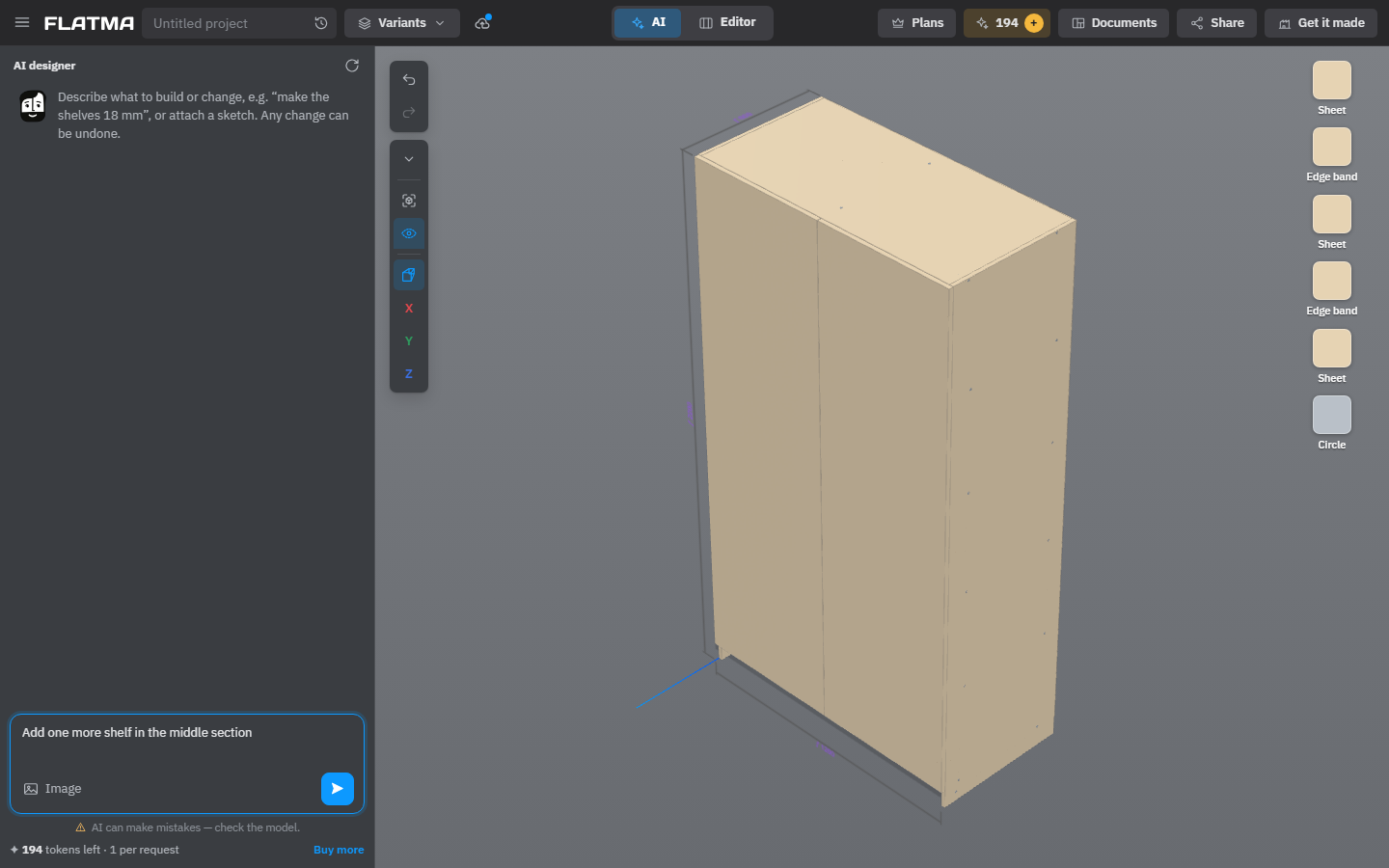
What the AI created or changed in its last answer is outlined on the scene. With see-through near the camera on (it is on in AI mode), parts in front of it turn into outlines, so a new shelf inside a closed cabinet is visible. A click on the scene or Esc clears the outline. When the AI has built the whole model from scratch, nothing is outlined.
Every change the AI makes is an ordinary step in the history. Ctrl+Z or the Undo button takes it back, and you can keep editing by hand at any time: the AI always works with what is on the scene now.
AI can make mistakes — check the model. Before you order or cut anything, look through the model, run Check intersections and check the sizes on the drawings. See Check intersections and Before you make it.
Start a new conversation
The round-arrow button in the chat header, New conversation, clears the chat. The model stays on the scene; the AI just forgets the earlier talk. Start one when you move on to a different piece, so old requests don’t get in the way. Very long conversations are shortened automatically.
AI tokens
Each question costs one AI token, however many steps the AI needs for it. A token is used only when the AI answers. A typical piece of furniture takes about three questions. The line under the field shows how many tokens you have left, with Buy more; the same balance is on the tokens button in the header.
- Without an account, the first question opens a window to create a free one, with 3 AI tokens.
- When the tokens run out, the chat shows Buy tokens, and in AI mode also Switch to Editor to carry on by hand. Your question stays in the field.
See Plans and tokens.
Working in inches
If ☰ → Units is set to in, the AI reads a size without a unit as inches and answers in inches, with fractions down to 1/16. You can still write “600 mm”: a size with its unit is taken as written.
On a company’s own website the AI is paid for by the company: there are no tokens. After a few questions the AI may ask for your name and phone, so the company can contact you.
See also: AI and Editor modes, AI render, Plans and tokens, Library and catalog.