Help · Parametric model
Variables and formulas
A variable is a named value, such as width or shelves. A formula is a field that starts with = and works its value out from variables and sizes. Change a variable once, and every field that uses it follows.
Project variables
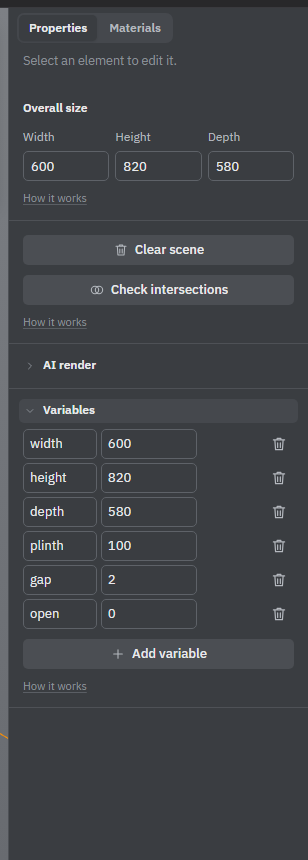
The project's variables are in the Variables block of Properties. You see it with Advanced tools on (☰ → Advanced tools) and nothing selected. The block is folded; its title shows how many variables there are.
- Click Add variable.
- Type a name, for example
side. - Type a value: a number such as
18, or a formula of other variables such as=width-2*side.
Next to a formula you see what it gives (ƒ 564). Point at the value to see which fields use the variable. The bin button removes it.
- A name is letters, digits and
_, not starting with a digit. Words the formulas already use can't be names: faces such asleftortop,parent,L,W,T,X,Y,Z,PIand function names. - Renaming a variable rewrites it in every formula.
- A change that would break the model — a loop (
ausesb,busesa), an unknown name, a division by zero — isn't accepted: the field goes back and the reason is shown. For the same reason you can't remove a variable that something uses; the message says where. - When you duplicate an object, variables that only it used are copied too (
width→width_2), so the copy can change on its own.
Formulas in fields
Any of these fields takes a formula instead of a number:
- Sizes and position in Properties:
=width, or the face of a neighbour by its ID, such as=side_l.right(see ID and condition). - Operation fields — saw, drill, mill, lathe:
=T/2for half the thickness,=L-37for 37 mm from the far end. - Repeat fields of objects and operations:
=floor((L-74)/32)+1. - Price in the Save as part window:
=L*W/1000000*45for 45 per square metre of the part. - The length and path of a profile, the points of a profile path:
=parent.X.
What a formula can use depends on the field:
- Project variables — everywhere.
L,W,T— the part's own length, width and thickness, from the largest size to the smallest;X,Y,Z— its sizes along its own axes. In operation, repeat and price fields.parent.X,parent.Y,parent.Z— the size of the group the object is in.- Numbers,
+ - * / % ^, brackets, comparisons (>,<,>=,<=,==,!=give 1 or 0) and the functionsmin,max,round,floor,ceil,abs,sqrt,pow,hypot,if(condition, a, b),sin,cos,tanand others, with angles in degrees.
A field with a formula follows its formula. Everything without one stretches the usual way, as when you drag a size. So you choose: put formulas only where a size must follow a rule, and leave the rest to stretch.
- A size set by a formula can't be dragged; the field's tooltip shows the formula. Typing a number makes it an ordinary size again; clearing the field drops the formula.
- An object whose position is set by a formula doesn't move along that axis when you drag it.
- In an operation, the formula is worked out again whenever the part is stretched. Moving the tool by its points replaces it with a number.
With inches chosen in ☰ → Units, sizes of products are shown in inches, but other variables and all formulas stay in mm. To give a variable a value in inches, add in: 3/4in.
A part's own variables
A part saved to the project (see Project parts) can have variables of its own. While you edit the part (Edit part), the Variables block shows its variables, not the project's: formulas inside the part see only them. That keeps the part portable — in another project a variable called gap may mean something else.
Each copy of the part can have its own values. Select a copy: the Parameters block lists the part's variables. Type a number or a formula of the project's variables, for example =width; leave a field empty to use the part's value. A new copy whose variable has the same name as a project variable follows that project variable from the start.
Variables of a selected object
Select an object that follows project variables — many catalog models do — and its Variables block lists them with their values. Change a value here and you change the project variable: everything that uses it follows. Trying to drag a size that a variable sets brings you to this block.
With Advanced tools on, Remove formulas under Variables or Parameters turns the object into an ordinary one that stays as it stands, without formulas and variables. Ctrl+Z brings them back.
See also: Repeat, ID and condition, Project variants, Size, position and rotation.