Help · Getting started
Your first project
A new project opens on an empty scene. You can describe what you want to the AI, start from a ready model in the catalog, or build it yourself from a blank sheet. This page walks you through the first few minutes.
Three ways to start
Open the studio. On a new, empty project the AI window sits in the middle of the scene and asks What would you like to make?
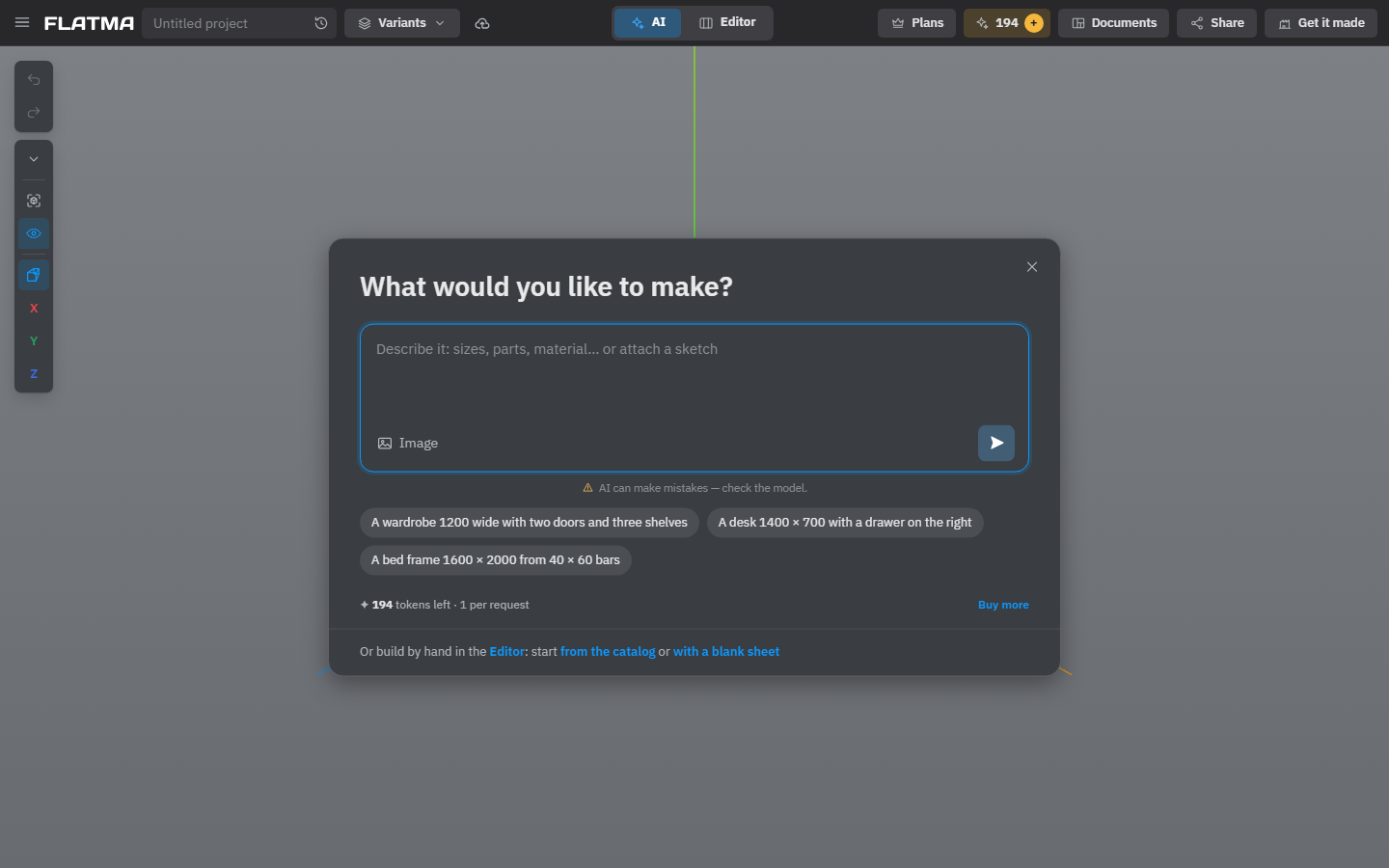
Describe it to the AI
- Type what you want to make, with the main sizes in mm: for example, “a wardrobe 1200 wide with two doors and three shelves”.
- Or click one of the examples under the field. It goes into the field without being sent, so you can change it first.
- To show a photo, sketch or drawing, click Image under the field.
- Press Enter or the send button.
The AI needs an account. If you are not logged in, the studio offers a free account with 3 AI tokens. One question costs one token. After the first question the chat moves to its usual place, and the model appears on the scene. See Designing with the AI.
Start from a catalog model
Under the AI field there is a line: Or build by hand in the Editor: start from the catalog or with a blank sheet. Click from the catalog. The studio switches to the Editor and opens the Catalog window. Pick a section on the left (for furniture, for example Kitchen cabinets or Tables) and click a model. It appears on the scene and stays an ordinary part of your project: you can change anything in it.
Later you open the same window with the Catalog button on the left panel, Library tab.
Build by hand
Click with a blank sheet to switch to the Editor with one sheet on the scene, or Editor to switch with an empty scene. From there you add parts from the Library tab and set them up in Properties. See Sheets, profiles and shapes.
The × in the corner of the AI window closes the start screen for good. The AI chat stays available: in AI mode it is the column on the left, in the Editor it sits at the bottom of the Library tab.
Change the size
Click the model on the scene to select it. Its overall sizes appear as numbers next to it.
- Click a number, type the new size and click Apply (or press Enter).
- In the Editor you can also type it in Properties → Size: Width, Height, Depth.
- In AI mode you can simply ask: “make it 900 wide”.
A cabinet stretches the way a real one would: the sides keep their thickness, and the shelves and doors follow the new width. Any change can be undone with Ctrl+Z or the Undo button at the top left of the scene. More in Size, position and rotation.
Save the project
The studio saves on its own. After each change your work is kept in this browser, so a closed tab or a lost connection loses nothing. To keep the project in your account and open it on any device, you need to be logged in.
- Logged in, the project goes to your account by itself: after a short pause in your work, at least every ten minutes while you keep working, and when you leave the tab.
- The cloud button next to the project name saves right away, as does Ctrl+S. A dot on the cloud means there are changes not yet saved to your account. The text next to it says where the project is: Saved, Saved on this device, and so on.
- Not logged in, the cloud button opens the window to log in or create a free account. Your design stays as it is.
- Give the project a name in the field at the left of the header. Without one it is called Untitled project.
On the Free plan, projects saved to your account are public: they get a public page. The first save opens the publish window, and until you publish, the project is kept on this device only. Hobby and Pro keep projects private. See Plans and tokens.
If the browser has a project you started but never saved, the studio asks when you open it: Restore it or Start new.
Find your projects later
Open ☰ → Account. The Projects tab lists everything you saved, newest changes first. Each project has a menu with Open, Make a copy, Public page (for public projects) and Delete. Deleted projects stay under Recently deleted for 30 days, and you can restore them from there. To start another project, use ☰ → New project.
See also: The studio at a glance, Designing with the AI, Library and catalog, Saving and versions.