Help · Parametric model
ID and condition
The ID & condition block gives a part or group a short ID for formulas, and a condition that decides whether it is in the model at all. Use it for parametric models: a shelf that stands between two sides, drawers that appear only when there are some.
The block is in Properties of a selected part or group, with Advanced tools on (☰ → Advanced tools).
ID
The ID is how formulas, the AI and the Elements list call this part. It is not the name you see in the list and the documents: that is set with Rename (✎).
- Use letters, digits and
_, for exampleside_l. - The ID must be unique within its group. Two cabinets can each have their own
side_l. - If the ID isn't accepted, the field turns red; point at it to read why.
With an ID, other formulas can refer to the part's faces: side_l.right is the right face of the part with the ID side_l. A shelf with its left edge at =side_l.right stays against that side when the cabinet changes. A face is one of left, right (along X), bottom, top (along Y), back and front (along Z).
In the model when
In the model when takes a formula of variables. While it gives 0, the part isn't in the model: it isn't shown and isn't in the documents, the cutting maps or the price. Any other value puts it back. Empty means always.
- Create a variable in the Variables block, for example
drawerswith the value2. - Select the part that should depend on it, for example the second drawer.
- In In the model when, type
drawers > 1and press Enter.
Set drawers to 1 and the second drawer leaves the model; set it to 2 and it comes back. Comparisons (>, <, >=, <=, ==, !=) give 1 when true and 0 when false, so you can also write width > 600 or doors == 2.
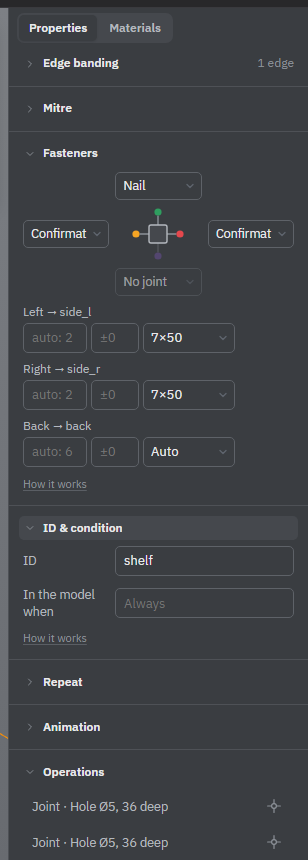
A part that is out of the model stays in the Elements list, marked; point at it to see its condition. Select it there to change the condition. Pointing at the field itself tells you whether the part is in the model now.
A part left out by its condition is gone from the documents too. Before you send a project to be made, check the variables: the cutting maps show only what is in the model now.
See also: Variables and formulas, Project variants, The Elements list.