Help · Workshop tools
Press
The press squeezes a part between two flat dies where you click: the flattened end of a tube for a bolt, a pressed middle for a clamp, a flat on a rod or a bar, a strip or a spot on a sheet, a straight stretch of a bent part.
Press a part
- Turn on ☰ → Advanced tools, select the part and press Press on the toolbar at the top left of the scene. The press panel takes the place of Properties.
- Click the part where the dies close. The top die comes from the side you click. A click near an end — closer than a quarter of the die length — puts the dies at the very end.
- Set Thickness after and Length.
- Press Press or Enter. Cancel or Esc leaves the part as it was.
Click again to move the dies. Drag the point on the ring to turn them to any angle: on a sheet the strip then runs at a slant, on a bar or a shape the dies press from another direction around it. The angle snaps to every 15°.
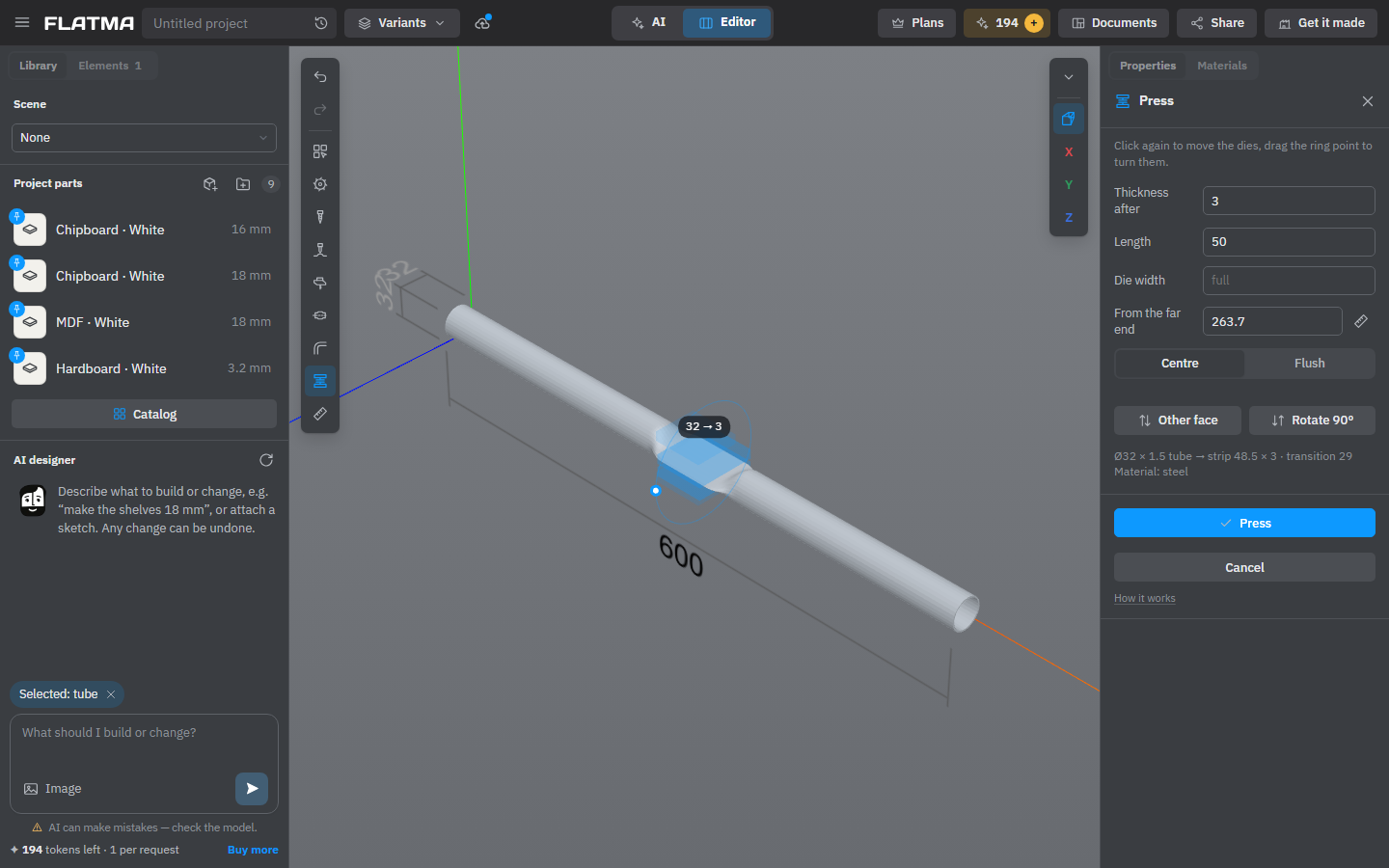
The fields
- Thickness after — what is left between the dies: the thickness of the pressed zone. Until you type it, it is two walls for a tube and half the thickness for a solid part.
- Length — the length of the dies along the part: the flat zone. A smooth transition follows on the inner side.
- Die width — narrow dies across the part press a spot. Empty (full) means wider than the part.
- From the end — from the end of the part to the dies; 0 puts them at the very end. The ruler button measures from the other end, and the label becomes From the far end.
- Centre — both dies squeeze, and the flat zone is in the middle of the section. Flush — one die stays on the part, and the flat zone lies on that face. Other face moves it to the opposite face.
- Rotate 90° — on a sheet, turns the strip; on a bar or a shape, turns the side the dies press from.
How the material behaves
As on a real press, what is between the dies behaves by its section and its material:
- A tube collapses: its wall keeps its thickness, and the flattened strip is wider than the tube.
- Steel, aluminium and plastic flow: the part gets a little longer. Narrow dies press a spot in place, without flow.
- Wood and boards such as chipboard and MDF are crushed, with no flow.
Under the fields the panel shows the section before and after, the transition, how much longer the part gets, and the material. Warnings — walls thinner than two, wood that may split, glass that isn’t pressed — still let you press. Dies that don’t touch the part don’t.
The cut length in the cutting list stays the length before pressing: that is the piece you cut and then press.
Change or remove a press
Each press is a row in the part’s Operations block. Click it to open the press as Edit press, change it and press Save; the bin removes it. The dies press only straight parts: on a bent part, click a straight stretch, not the bend. Groups, locked shapes and copies of a project part can’t be pressed.
When the part is stretched, dies at the end stay at the end.
See also: How operations work, Bend and twist, Cutting maps.