Help · Workshop tools
Jigsaw and bar section
One window, two jobs. For a panel, it is the jigsaw: you draw the panel’s outline by points — curves, arches, rounded corners — and cut-outs right through. For a bar (a profile), you draw its section: the shape across the bar.
The toolbar button is Shape by points: a panel’s outline (jigsaw), a bar’s section, on the toolbar at the top left of the scene with ☰ → Advanced tools on. Without Advanced tools, open the same window from the Geometry block of Properties: Edit shape… for a panel, Edit section… for a bar.
Cut a panel’s outline
- Select a panel (a sheet) and press the button. The window opens full screen with the face turned towards you: 0 is the lower-left corner of the panel, → goes right, ↑ goes up.
- The outline starts as the panel is now. Drag the points; a double-click on an edge adds a point, and Del removes the selected one.
- Drag the ◆ in the middle of an edge to bend that edge into an arc. A double-click on ◆ makes an outward arc, or a straight edge again.
- Press Apply.
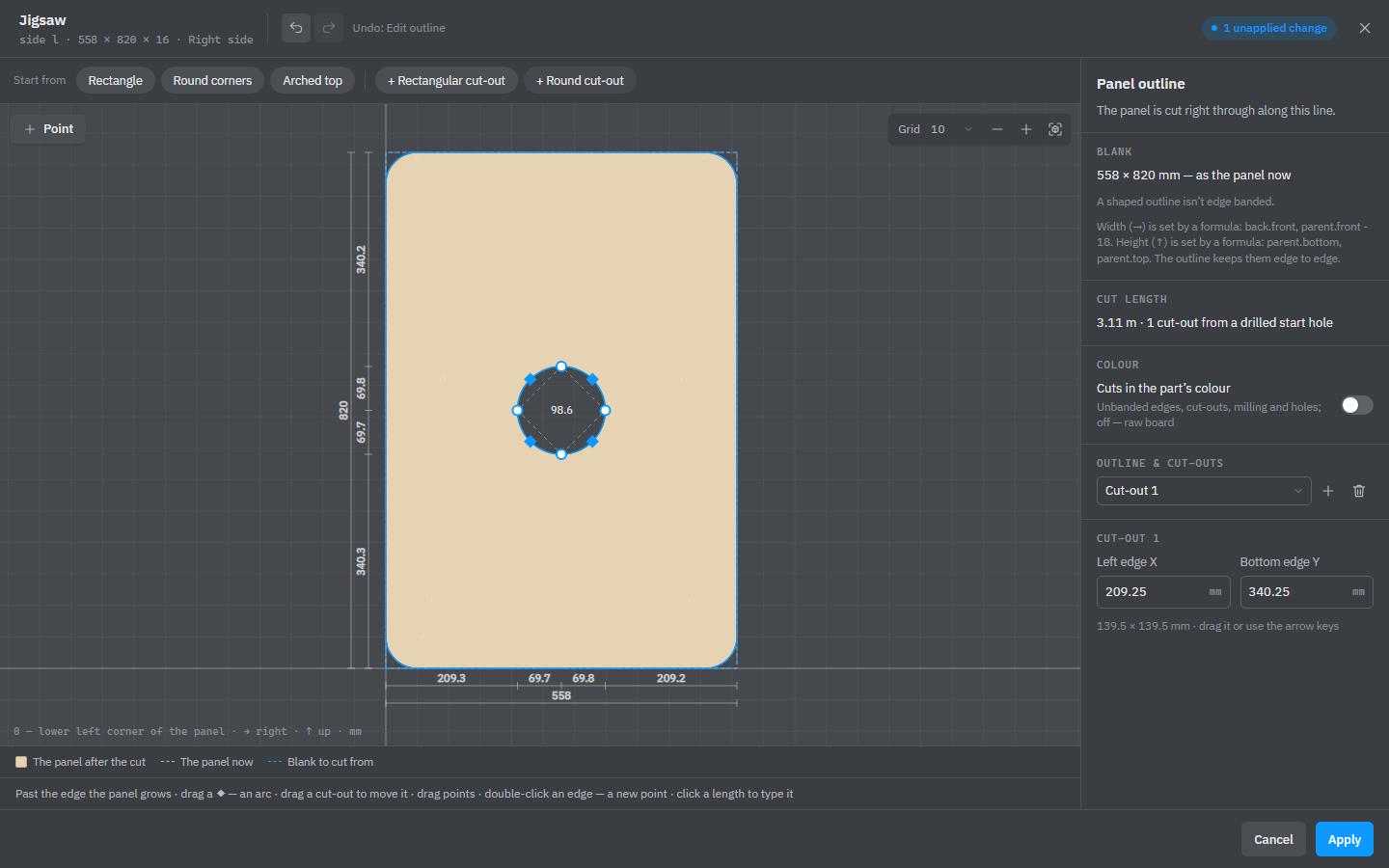
Above the drawing, Start from gives ready outlines: Rectangle (the panel as it is), Round corners and Arched top. The card of the selected point has its position, Corner radius, Edge bend (the arc to the next point; negative bends the other way) and Edge length. These fields take a formula, which is worked out once when you apply.
The blade cuts right through, so both faces get the same outline. A panel has one outline: press the button again, or click its Jigsaw row in the Operations block, to change it. When the panel is stretched, its outline and cut-outs stretch with it.
Points past the edge: a bigger panel
Points past the edge of the panel make it bigger. The panel is then cut from the rectangle around the outline, dashed on the drawing; its size (and the size before) is under Blank. The cutting list and the size of the part follow this blank. A blank bigger than a sheet of the part’s material can’t be applied. An edge cut off earlier with the saw doesn’t grow back: the outline must stay inside it.
Cut length shows how far the jigsaw cuts: the cut-outs, and the outline unless it is a plain rectangle.
Cut-outs
A cut-out is a hole right through: a window, a handle slot, a round hole of any size. Add one with + Rectangular cut-out or + Round cut-out above the drawing, or with + next to the Outline & cut-outs list. Change its points and arcs like the outline. To move it whole, drag it from inside, press the arrow keys (one grid step; with Shift, ten), or type Left edge X and Bottom edge Y.
A cut-out must stay inside the panel, clear of its edge and of other cut-outs. The line at the bottom of the window lists the checks: an outline that crosses itself is an error. An inside curve or corner tighter than a 5 mm radius is a warning, because the blade can’t turn that tight; so is a cut-out narrower than 10 mm — the blade won’t go in, so drill it instead.
Edge banding and colour
A shaped outline isn’t edge banded. A rectangular one keeps its band, with cut-outs or without. On a sheet, Colour → Cuts in the part’s colour shows cut-outs, milling, holes and unbanded edges in the part’s colour instead of raw board.
The jigsaw cuts flat panels of sheet material only; give a shape its form with the mill and the saw instead. A bent or pressed panel is cut flat, before the bend: remove the bend or press first. Locked parts and copies of a project part can’t be cut.
Draw a bar’s section
Select a bar (a profile) and press the same button, or Edit section… in the Geometry block. The drawing is the section seen from the end turned towards the camera; 0 is its lower-left corner.
- Points, ◆ arcs and the point card work as for a panel. Points left of or below zero make the section grow that way.
- A hole — + Rectangular hole, + Round hole, or + next to Outline & holes — runs the whole length of the bar.
- Start from offers ready sections the size of the current one; then move their points.
- Section on the right shows the new size, the size before and the area.
- When other parts are made of the same material, Change asks which parts get the new section: This part (it gets a material of its own, the others keep the old section) or all of them (the button shows how many, such as All 4 parts).
The section belongs to the bar’s material: it isn’t an operation and isn’t in the Operations list. The length, cuts and holes of the part stay. A bent bar, a copy in an array, a locked part or a bar inside a project part can’t change its section here.
See also: Sheets, profiles and shapes, Edge banding, Mill, How operations work.