Help · Projects and sharing
Get it made
Get it made shows companies in your city that make things to order, and sends your project to the one you choose. They see the project as you made it and contact you about the price and the details.
Open Get it made
Click Get it made in the header of the studio. The same window opens from Find a maker in your city at the bottom of the Download model window. It isn't shown in a project opened by a view link.
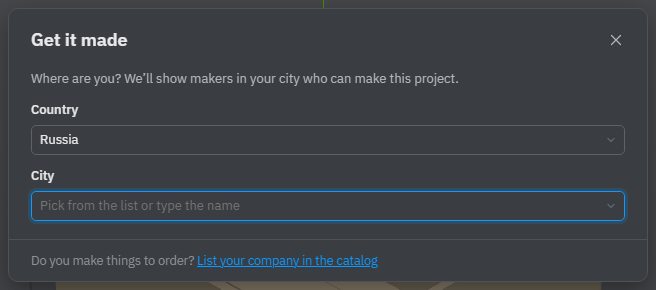
Choose your city
- Pick the Country. Countries that have makers in the catalog are at the top of the list.
- Type the name of your city in City, or click the field to see the big cities, and pick it from the list. Below the field, the cities of that country that have makers are listed with their number of makers; you can click one of them instead.
Your city is remembered in this browser for a year. It is never guessed from your address. To pick another one later, click Change city next to the city name.
Choose a maker
Choose what you need:
- Parts to order — they make the parts from your project, and you assemble it.
- Turnkey — they make the finished thing, deliver it and install it.
Each card shows the company's logo and name, what it makes in its own words, its services, address, any discount or free delivery, and its contacts: phone, messengers, email, social pages, website and Their designer — the company's own site on Flatma. Works with Flatma marks companies on the Flatma Business plan. Show more loads further cards; the order is mixed each time you open the studio.
If there are no makers in your city yet, try a city nearby, or click Download the documentation and take it to any workshop.
Send your project
- Click Send project on the maker's card.
- Fill in Your name and Phone. In Comment you can add sizes, materials, colours, when you need it.
- Click Send project.
By sending, you agree that the company gets your name, phone and the project to contact you. If some chosen fasteners aren't installed, the form warns you first: the company won't see them in the project (see Check intersections).
The window then shows the number of your request and a link to follow it on the company's site. The maker's card now says Sent with that number. Other makers takes you back to the list; you can send the same project to several companies.
What the maker receives
The company gets a new request in its Flatma CRM, marked as coming from the catalog, with your name, phone, comment and a copy of the project as it was when you sent it: the 3D model with its parts, materials and sizes. Later changes in your studio don't change that copy.
On the request page on the company's site you see the status — Request sent, Viewed, Offer, In production, Ready, Done — the company's note, its offer when it is ready, the 3D model as you sent it, and the company's contacts. Until the company opens your request, Change your request lets you edit the project and send the update into the same request.
Before you send, check the drawings and the parts list yourself. The price and what exactly will be made are agreed between you and the company.
See also: Downloads, Before you make it, Check intersections.