Help · Projects and sharing
Saving and versions
The studio saves as you work: first in your browser after every change, then to your account. You rarely need to save by hand, and an earlier version is never far away.
How saving works
Every change is kept in your browser half a second later. It survives a closed tab, a crash or a lost connection. Your account gets the project less often: after two minutes without changes, at least every ten minutes while you keep working, and right away when you leave the tab or close it. A new project is saved a few seconds after your first change, and gets its own link.
To save now, click the cloud button to the right of the project name, or press Ctrl+S. A dot on the cloud means there are changes not yet saved to your account. The line next to it says where things stand, such as Saved at 14:30, Saving… or Saved on this device · log in to save.
- Without an account, the project lives only in this browser. The cloud button opens the login window; after you log in, the project moves to your account as it is.
- Someone else's project, opened by its link, becomes your own copy with its own link on the first save. The original doesn't change.
- The same project in two tabs: the studio warns you. The last save wins, and the other copy goes to Version history. Keep working in one tab.
On the Free plan
On Free, projects are saved to your account as public: saving means publishing. The cloud button and Ctrl+S open Publish project, and until you publish, changes stay on this device. After a while of work, a bar over the scene reminds you. A Public badge next to the project name shows that it is public. Hobby and Pro keep projects private until you choose to publish them. See Publishing.
Unsaved changes found
When you open a project, your browser may still hold changes that never reached your account. If the saved project hasn't changed since, the studio restores them by itself. If it has — you probably worked on it from another device — the studio asks:
- Restore my changes — put this browser's changes back on the scene. They are then saved as usual.
- Keep saved version — open the project as it is saved and drop this browser's changes.
For a new project that was never saved, the window is called Unsaved project found and offers Restore it or Start new. If you close the window without choosing, the changes wait until your next edit. A browser keeps unsaved changes for 30 days.
In a private window, or with site storage turned off, the browser can't keep changes. The studio then saves to your account more often.
Version history
Your account keeps earlier versions of the project: about one for every 30 minutes of work, plus one whenever a save from another tab or device replaced yours and before you restore a version. To see them, click the clock inside the project name field (on a phone, ☰ → Version history).
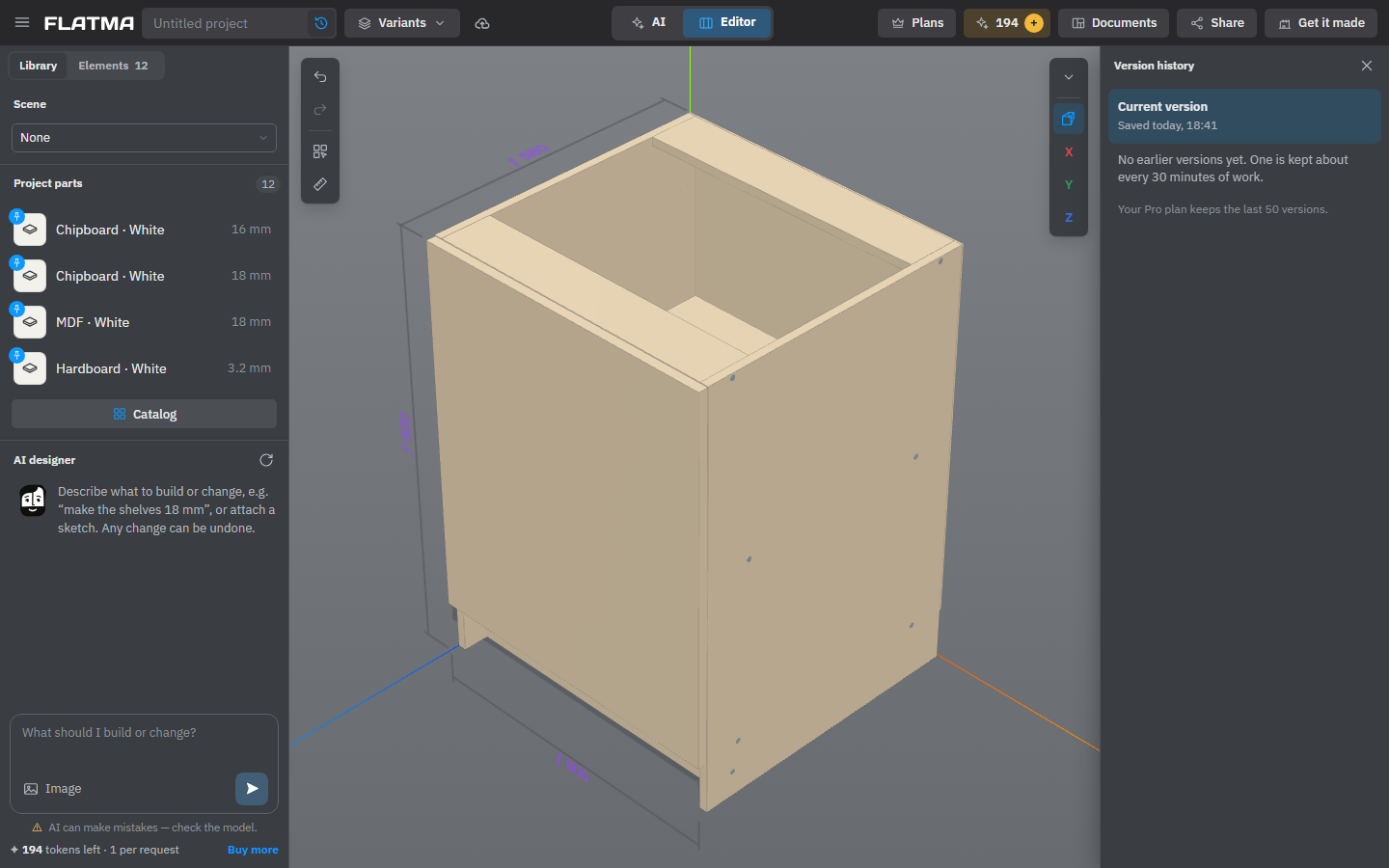
The panel shows the current version on top and the earlier ones by day, with the time and why each was kept. Click Restore to put a version on the scene. It comes in as an ordinary change: Ctrl+Z brings back what you had, and what you had is kept as a version too. Finish editing a part before you restore.
How many versions are kept depends on the plan: Free keeps the last one, Hobby 10, Pro 50.
Save as file and Open file…
A project can also live in a file on your computer, with the .flatma extension. Both commands are in the ☰ menu and come with paid plans (the crown next to them shows when your plan doesn't have them).
- Save as file downloads the project with its name and camera view. Owner, links, versions and remarks are not in the file. Textures are stored by name: a texture the site doesn't have shows as the part's own colour.
- Open file… opens a .flatma file as a new project. The project you have open isn't overwritten. You can also drop the file onto the scene.
Files from the old Flatma designer have the same extension, but they can't be opened here yet.
Where your projects are
☰ → Account opens your account page. The Projects tab lists your projects, as a list or as cards, with a mark on each: Private, Public or In community. The ⋮ menu of a project has Open, Make a copy, Public page (for published ones) and Delete. A deleted project stays under Recently deleted for 30 days, and you can restore it there.
The number of projects depends on the plan: Free has room for one, Hobby for three, Pro has no limit. A project over the limit isn't saved to your account; its changes are kept on this device, and a bar over the scene says what you can do. See Plans.
See also: Project variants, Publishing, Sharing and remarks, Plans and tokens.