Help · Getting started
Keyboard and mouse
Most work in the studio is done with the mouse, and a few keys make it faster. Press ? in the studio, or open ☰ → Keyboard shortcuts, to see the short list at any time. On a Mac, use Cmd where this page says Ctrl.
Mouse
| Action | What it does |
|---|---|
| Click | Select a part. Shift+click adds it to the selection or takes it out. |
| Double-click | Open a group to work on the parts inside it. |
| Drag a part | Move it. Hold Shift to move along one axis, Alt to move without snapping. Esc puts it back. |
| Drag a row from Project parts | Put the part where you drop it: on a part, a wall or the floor. |
| Drag empty space | Turn the view. Right button — pan, wheel — zoom. |
| Hold the wheel and drag | Turn the view anywhere, even over a part. |
| Click a size number | Type a new size. |
| Click a corner sphere, then a point | Stretch the part so that corner lands on the point. |
| Click an arrow next to a part | Turn it by 90° around that axis. |
| Right-click a part | The part menu (below). |
The camera is covered in Camera and views; sizes, corner spheres and turning in Size, position and rotation.
Keys
| Key | What it does |
|---|---|
| Ctrl+Z | Undo |
| Ctrl+Shift+Z or Ctrl+Y | Redo |
| Ctrl+D | Duplicate the selection. The copy is placed next to the original. |
| Delete or Backspace | Delete the selection |
| M | Move by points (below) |
| Ctrl+S | Save now |
| Enter / Esc | In a tool: apply / cancel |
| Esc | Close a window, leave an open group, clear the outline of what the AI changed |
| ? | The list of keys and mouse actions |
The keys work on the scene, not while you type in a field. In a field, Ctrl+Z undoes your typing, and Enter confirms the value.
The part menu
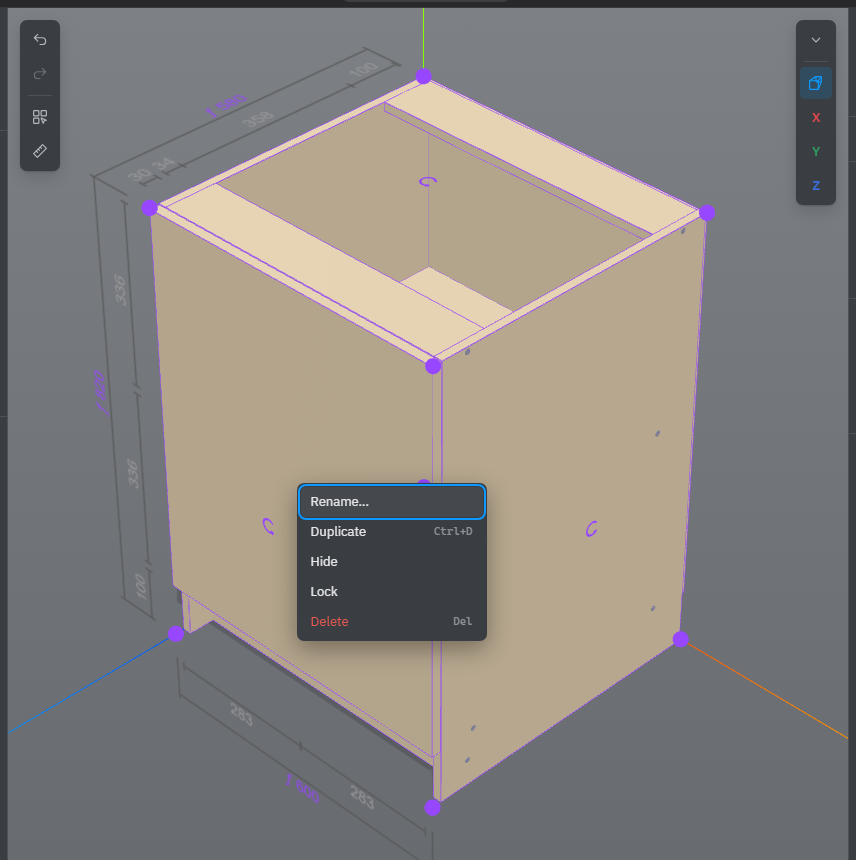
Right-click a part without moving the mouse. The part is selected and a menu opens next to it:
- Rename… — the name and type of the part.
- Duplicate (Ctrl+D) — a copy next to it.
- Material… — the material window of this part’s sheet, profile or shape.
- Hide or Show — take it out of view or bring it back.
- Lock or Unlock — a locked part can’t be moved or resized by accident.
- Delete (Del).
An item is missing when it doesn’t apply, for example Duplicate on a part inside a part copy. A right-click with a drag pans the camera instead. Click elsewhere, press Esc or scroll to close the menu. The menu is not available while a tool, the ruler or Select several is on.
Move by points
Press M to move a part exactly from one point to another, the way you would with a tape measure.
- Select the part, or start with nothing selected: then the part under your first click is moved.
- Press M.
- Click the base point: a corner, the middle of an edge, an edge or a face. Points snap like the ruler’s.
- Click where that point should go. The part moves by the same distance.
While you lead the part:
- Shift keeps the move along one axis.
- X, Y or Z locks that axis; press it again to free it. With an axis locked, pointing at a corner of another part lines your part up with it.
- Type a number and press Enter to move exactly that far in the direction you are pointing; a minus moves the other way.
- Esc cancels the move; press it again to leave.
Clicking a corner sphere of the selected part works the same way, but stretches the part instead of moving it. Press Alt on the way to move the whole part by that corner; press it again to go back to stretching. On a phone, tap twice instead of clicking.
Keys in windows
- In the mill, lathe and jigsaw windows and in the room plan, Ctrl+Z and Ctrl+Y undo and redo the changes made in that window, and Delete removes what is selected in the drawing.
- In the mill window, Ctrl+C and Ctrl+V copy the selected element and paste a copy of it.
- In the AI chat, Enter sends the message and Shift+Enter starts a new line. Ctrl+V pastes a screenshot as a picture for the AI.
See also: Camera and views, Size, position and rotation, Groups, The Elements list.