Help · Parts and assembly
Library and catalog
Everything you put on the scene comes from the Library tab of the left panel: plain sheets, profiles and shapes, ready parts from the catalog, your own saved parts and projects other people shared.
The Library tab
In the Editor, the left panel has two tabs: Library and Elements. The Library tab has three parts, top to bottom:
- Scene — a floor or a room around your model. See Floor and room.
- Project parts — what you have used in this project, the last used first. A new project starts with a few common materials and parts already in the list.
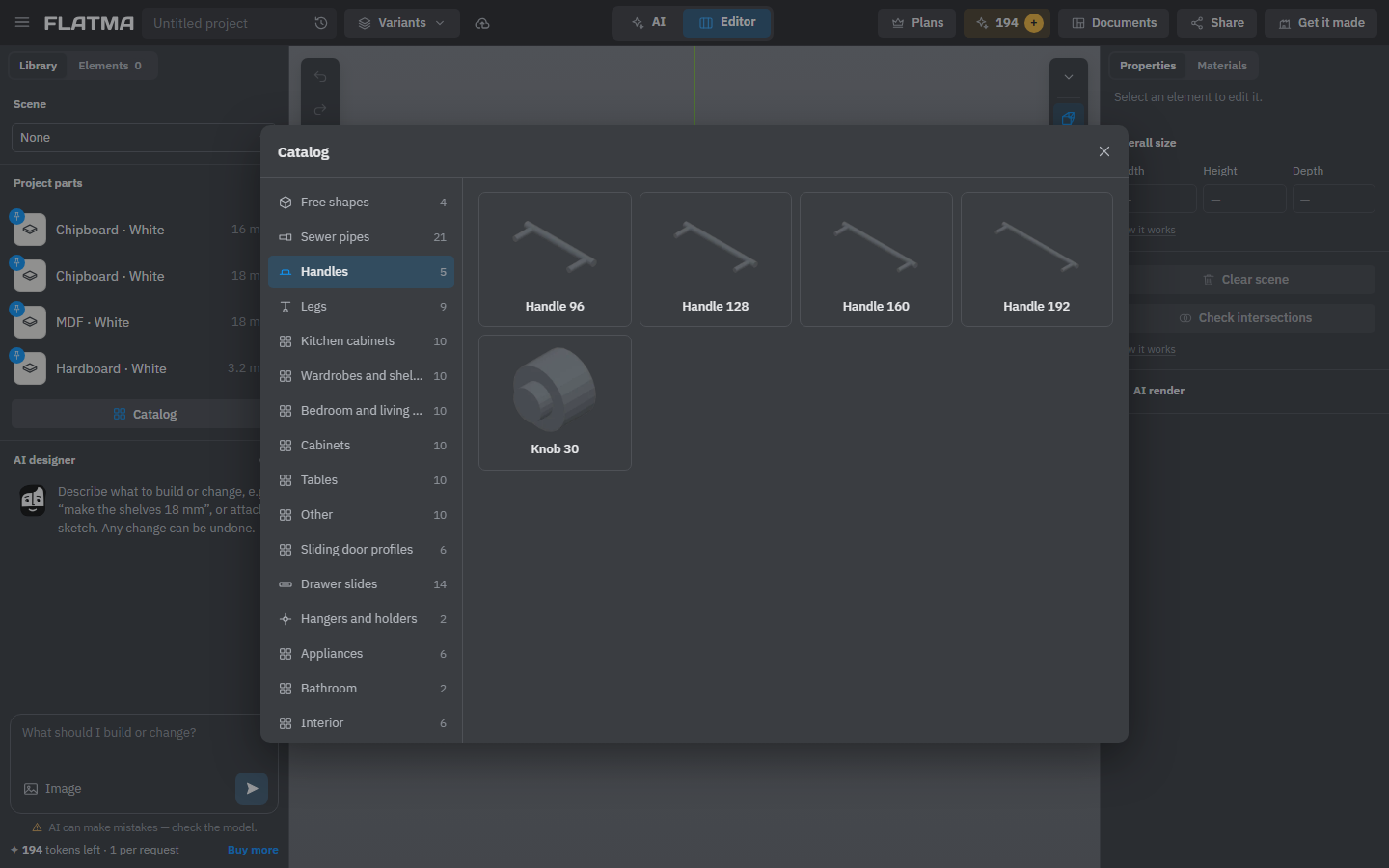
- The Catalog button — opens the window with every ready part, sorted by section.
Put a part on the scene
To add a part from the Project parts list:
- Click its row: a new one appears on the scene and is selected.
- Or drag the row onto the scene: the part lands where the pointer meets a part, a wall or the floor. Dropped on top of a part, it stands on it; dropped on a wall, it sits with its back to the wall. Release it away from the scene or press Esc to cancel.
To add a part from the catalog, click Catalog, pick a section on the left and click a card. The window closes and the part appears on the scene. From then on it is also in Project parts, so the next one is a click or a drag away.
A material row in Project parts, such as Chipboard · White 16 mm, makes a new part of that material. Hover a row and click the pin in the corner of its icon to keep it at the top of the list. Parts you delete from the scene stay in the list.
Free shapes
The first section of the catalog, Free shapes, holds the basic kinds of part you build everything else from:
- Shape — a block you can cut, drill, mill and turn into anything.
- Sheet — plywood, MDF, chipboard, sheet metal. A new sheet is 600 × 400 × 16 mm, made of the sheet material you used last.
- Profile — tubes, bars, rods: anything sold by length.
- Connector — a port that makes parts snap together. This card shows only with ☰ → Advanced tools on. See Connectors.
What each kind is for and what works on it: Sheets, profiles and shapes.
Catalog sections
The other sections hold ready parts. The list changes as the catalog grows; today it has, for example:
- Furniture models — Kitchen cabinets, Wardrobes and shelving, Bedroom and living room, Cabinets, Tables, Other. A model lands as an ordinary group of parts that you can open and change like anything you built yourself. If it has variables (width, height and so on), they become variables of your project.
- Hardware — Handles, Legs, Drawer slides, Hangers and holders, Sliding door profiles. These are bought items: they go into the specification as one line each, not into the cutting maps. Drag a handle or a leg on the scene onto a face of a part, and it stays on that face when the part moves or stretches.
- Interior items — Appliances, Bathroom, Interior, Tiles and finishes. They are display only: they help you see the room and are left out of all documents. You can change their size and colour.
- Sewer pipes — pipes and fittings whose ends snap into each other.
Each placed catalog part is copied into your project. Your project doesn't change if the catalog part is updated later.
My parts
My parts holds your own parts, shared by all your projects. You put a part there from the part's window: with Advanced tools on, Edit part → Details → Save to My parts. You need to be logged in. On a card, the pencil lets you rename the part, move it to a section or remove it; a project that already uses the part keeps its copy. See Project parts and My parts.
Flatma community
Flatma community lists projects people have shared. Type in Search projects by name to find one, then click it to insert the whole project into yours as your own copy. A project that comes with a room brings it along only if your project has no room yet. To share your own work, use Share → Publish.
If the parts library can't be reached, the catalog says so. Free shapes and the parts already in your project keep working.
See also: Sheets, profiles and shapes, Project parts and My parts, Publishing, Fasteners and hardware.