Help · Materials, edges and fasteners
Materials and decors
Every part has a material in two halves: the base — what you buy and cut, such as a 16 mm chipboard sheet or a 40 × 20 tube — and the decor — how it looks. You change both in one place, the material window, which opens from the Materials tab.
The Materials tab
The Materials tab sits next to Properties in the right panel. It shows the project's materials as cards: a swatch, the name, the main sizes and how many parts use it.
- Parts with the same parameters share one card: pieces of one sheet, lengths of one bar.
- Each sheet's edge band has its own card, right under the sheet card.
- Bought and display-only items come last. They aren't cut, but you change their look the same way.
- With nothing selected you see every material of the project; with a part or group selected, only its materials ("2 of 6 parts").
- Point at a card to light up its parts in the scene. "Don't fit the stock" means some parts are bigger than the sheet or bar.
In AI mode the right panel is hidden, and the same cards appear as swatches at the right edge of the scene.
Change a material
- To change only some parts, select them first. To change every part with the material, select nothing.
- Click the material's card. The line under the window title says what will change: "Changes all 6 parts with this material" or "Changes the selected part · 5 others keep it".
- Edit the fields on the left, or pick a ready base or decor on the right. Picking only fills the fields.
- Click Apply.
Selected parts that get a different material become a separate card. Locked parts stay as they are. In copies of library parts only the decor and colour change; the rest is set in the part itself (Edit part).
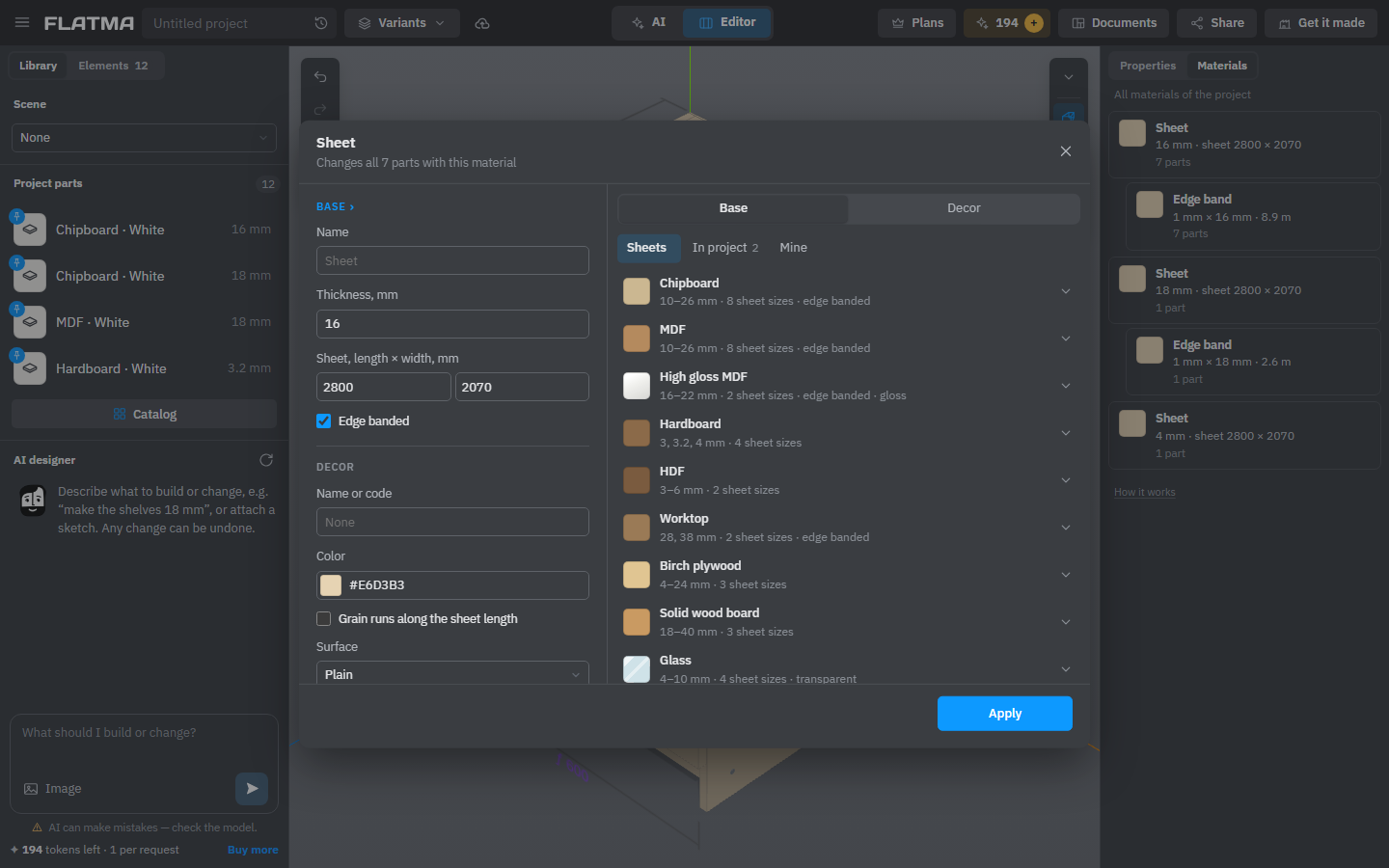
Base: what you buy and cut
The Base group depends on the kind of part:
- Sheets: Name, Thickness, Sheet, length × width and Edge banded. Chipboard and MDF are banded; glass, plywood and sheet metal are not, and their edges stay in the sheet colour.
- Profiles: Section (the kind of section and its sizes; a section of your own has Edit shape…) and Bar length.
- Shapes have no base, only a decor.
On the right, the Base side lists ready bases of the same kind: the library (Sheets, Profiles or Edge bands, with Custom for your own), In project and Mine — bases you used in your projects in this browser.
A part is never bigger than its material: a smaller sheet or a shorter bar shrinks the parts to fit. Bases that would do this are marked, for example "shrinks 2 parts". Bent parts keep their thickness or section: it is set before the bend.
Decor: how it looks
- Name or code — the decor's name, as it goes to the documents.
- Color — any colour. A colour of your own makes the sheet plain: the texture and the grain go.
- Texture — shown when the decor is a picture, such as wood or stone. Remove takes the picture off and keeps a plain colour.
- Grain runs along the sheet length — for wood grain, veneer and patterned decors. The cutting maps then never turn such parts. Picking a decor sets the box for you: on for a texture with a direction, off for a plain colour. The pattern runs along each part's length; the AI can turn it across a part.
- Surface: Plain, Gloss, Metal, Clear glass, Frosted glass or Mirror. Metal, glass and mirror pick a matching decor; you can change its colour afterwards to tint the glass or the mirror.
The Decor side on the right has a search box and lists decors in the project, recent ones, textures, plain colours, stone, metal, glass and mirror. A decor that isn't there you type on the left.
Gloss, metal and mirror reflect an imagined bright room, not your scene. To see real reflections in mirrors, turn on Mirrors reflect the scene among the view buttons on the scene (open them with More view buttons). It is heavier for the computer.
The edge band's material
The band on a sheet's edges is a material of its own: open its card under the sheet card.
- Name — for example "PVC edge" or "ABS edge"; ready ones are on the Base side.
- Thickness — the band's own thickness. Its width always follows the sheet thickness.
- Same as the sheet copies the sheet's decor into the band's fields once. After that the band keeps its look when the sheet changes.
- Name or code, Color and Texture — the band's own decor.
A new sheet gets a 1 mm band in the sheet's colour. With parts selected, the band changes only on them. Which edges are banded is set per part: see Edge banding.
Made, bought or display only
To choose how a part or group goes into the documents, click Rename (✎) at the top of its properties or in the Elements list, and set In documents:
- Made — in the parts list, cutting maps, drawings and materials.
- Bought — only in the parts list, as an item; a bought group is one item.
- Display only — in no documents, only for the look, such as a vase or an appliance standing in the scene.
Your firm's materials and prices
If you work for a firm on Flatma, the firm's materials come first on the Base side, on a tab with its name. Under the base fields you see whether the base is in the firm's price list. Click Add or Change, enter the price before the markup, choose how you sell it (per sheet, per m², per bar, per m) and click Save: offers and the estimate on the firm's site use it. Visitors to the firm's site see its materials, not the prices.
See also: Edge banding, Sheets, profiles and shapes, Cutting maps, Project parts and My parts.