Help · Checking and documents
Check intersections
Check intersections finds parts whose bodies overlap — a shelf that runs into a side, a door that cuts into its neighbour. Run it before you order the parts.
Run the check
- Switch to the Editor (the AI | Editor switch in the middle of the header). In AI mode the right panel is hidden.
- Click an empty spot in the scene, so that nothing is selected. Properties on the right now shows the whole project: Overall size, Clear scene and Check intersections.
- Click Check intersections. While it works, the button shows Checking… with a percentage. A big project takes a few seconds; you can keep looking around.
When it is done, a line under the button says No intersections found or how many there are, for example 3 intersections — red on the scene.
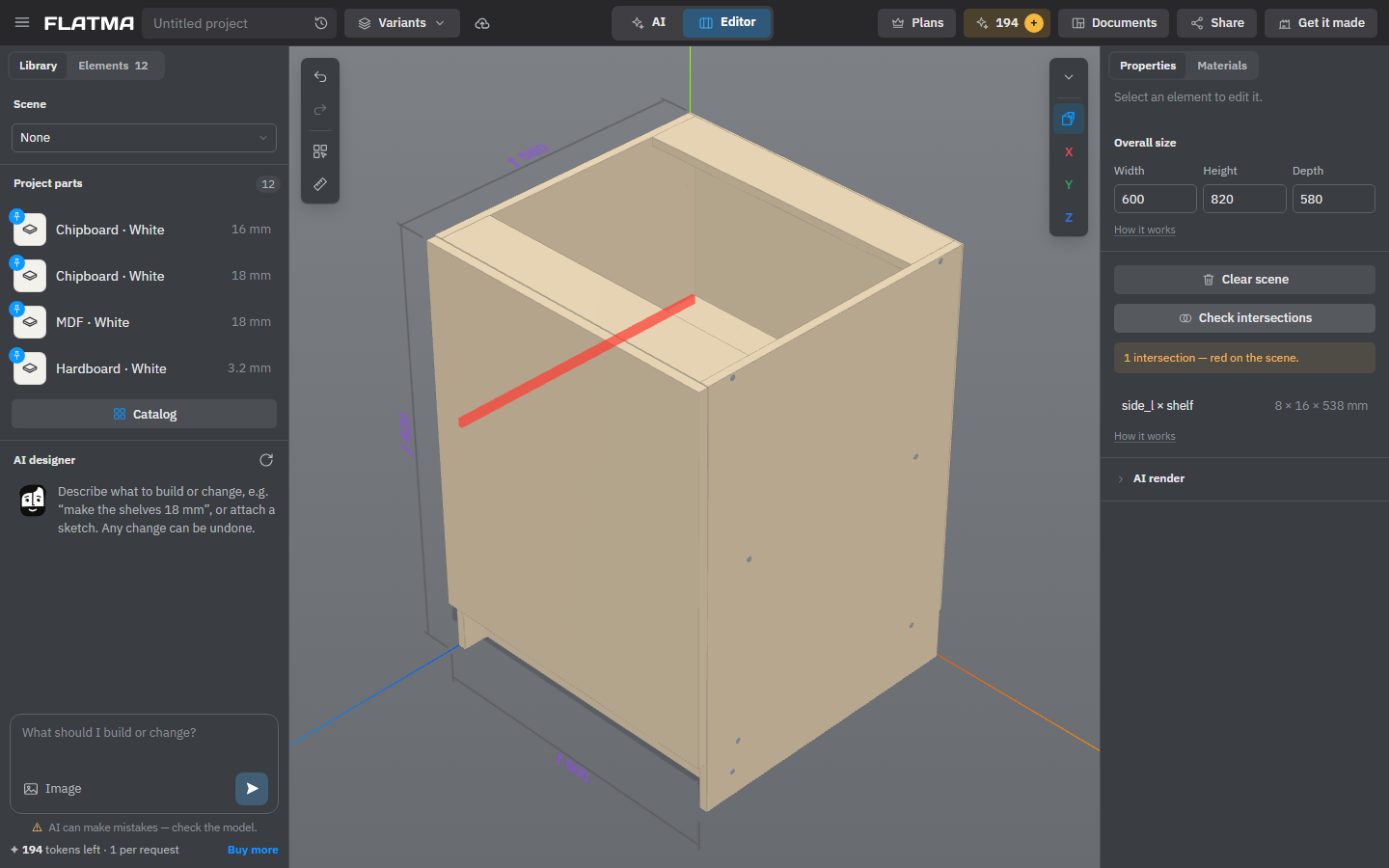
Read the result
Every overlap shows on the scene as a red body: the part that two parts share. Under the button there is a list, one row per pair: the names of the two parts (Shelf × Side) and the size of the shared part (18 × 4 × 560 mm). Sizes are in your units (☰ → Units).
- Point at a row to make that pair's red body brighter.
- Click a row to select the part, then fix its size or position in Properties.
- A size starting with ≈ means one of the parts is not a closed solid, so the studio compared the boxes around the parts. Look at that pair yourself.
- The list shows the first 200 pairs. Fix the big ones and run the check again.
Any change to the model clears the result, including undo and redo. Press the button again after your fixes. If a check is running when you change something, it stops.
What it checks, and what it doesn't
The check compares the real shapes of all visible parts, at any depth inside groups, including the copies made by Repeat. Parts that only touch — a shelf standing on a side, a back panel against the carcass — are not intersections. Hinges are checked as you see them on the scene: against shelves, rails, the next door or another hinge, but not against their own door and side, which have holes for them.
Some things are not compared:
- Hidden parts, including parts switched off by a condition.
- Parts inside one inserted project part, and parts of one bought or decorative item, such as a handle or a leg from the catalog. Their models may be built with overlaps.
The check only looks for overlapping bodies. It doesn't judge the design: whether a shelf is strong enough, whether a drawer can open past a hinge, whether the sizes suit the room. Check those yourself on the drawings before you order.
Fasteners that aren't installed
Under the intersections list, the same panel shows Fasteners not installed with a count, whenever there are any — you don't need to press the button. A fastener is chosen on a side of a part but the studio can't put it there: it would come out of the part, cut into another part, or miss the gap it needs. Such a fastener stays chosen, but it has no holes and is not in the parts list or on the drawings.
- Each row says the part, the side and the kind of fastener, and why it isn't installed.
- Click the row to select the part. Where there is an easy fix, the row has a button for it.
- On the scene, the fastener shows in red where it would stand.
The same warning appears at the top of the Documents window and the Download model window, so you don't send drawings without those holes by mistake.
See also: Fasteners and hardware, Size, position and rotation, Drawings, Before you make it.