Help · Parametric model
Animation
Animation turns or moves an object: a door swings open, a lid lifts, a drawer slides out. It shows how the piece works and lets you see that moving parts clear each other. People you share the project with open them with a click.
Add an animation
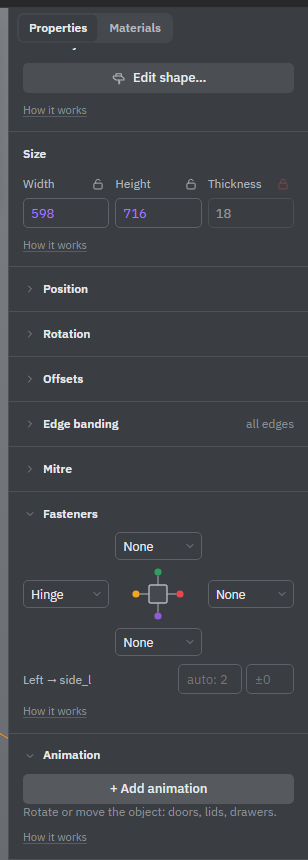
The Animation block is in Properties of a part or group, behind Additional settings at the end of the properties (with Advanced tools on it is always shown).
- Select the door, lid or drawer. For a drawer, select the group that holds its front, sides and bottom, so it all moves together.
- Click Additional settings and open Animation.
- Click + Add animation.
- Set the fields on the card and click ▶ Play to see it.
The animation card
- Type — Rotate for doors and lids, Move for drawers and sliding doors.
- Axis — X, Y or Z: what the object turns around or moves along. X runs left to right, Y up, Z towards you. A door on side hinges turns around Y, a lid around X, a drawer moves along Z.
- Pivot (for Rotate) — where the object turns: one edge or the center, such as Left or Right for a door.
- Angle, ° or Distance — how far. A negative value goes the other way: if the door opens into the cabinet, change the sign.
- Duration, ms — how long it takes, in milliseconds: 600 is 0.6 seconds.
- Delay, ms — start this long after the mechanism starts, to play animations one after another.
- Mechanism — which mechanism the animation belongs to (below).
One object can have several animations; they add up in order. For example, a door can move out a little and then turn. The time under each card shows when it plays. The × on the card removes it.
Mechanisms
Animations of one mechanism start together, from a click on any of their objects. Put both doors of a cabinet in Mechanism 1 and they open at once; put each drawer in a New mechanism and they open one by one. Use Delay, ms inside a mechanism for a sequence: first the door opens, then the drawer behind it slides out.
Play and stop
▶ Play runs the mechanisms of the selected object and shows how long they take. While something stands open, the button reads ■ Stop. Any click in the studio or Esc also puts everything back: you always edit, select and drag the closed model. Handles, hinges and other hardware on a moving part move with it.
A locked object can't be animated: unlock it first. Parts inside a library part can't be animated on their own; animate the whole part instead.
In the shared view
When someone opens the project by its share link, the pointer turns into a hand over anything that moves. A click opens it, another click closes it. A click on empty space or Esc closes everything.
Open each mechanism once before you send the project: a door that hits a shelf or a drawer that hits a hinge shows up straight away. Use Check intersections for the closed model.
See also: Sharing and remarks, Groups, Check intersections.