Help · Parametric model
Project variants
A variant is a copy of your project that you keep alongside it: the same wardrobe with sliding doors, a kitchen in another colour, a cheaper material. Each variant is a project of its own with its own link, and they all stay together under the main one.
Save a variant
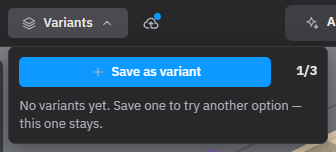
- Click Variants in the header, right after the project's name.
- Click Save as variant.
Flatma first saves the project as it is, then makes the variant from the same state, and you go on editing the variant. The name and the link in the address bar change to the variant's; there is no reload. The project you started from stays exactly as it was.
A variant is called after the project, for example "Wardrobe — Variant 2". You can rename it like any project.
Switch between variants
The Variants menu lists the main project and all its variants; the open one is marked. Click another to open it. Before you leave, the project you are in is saved. Click the bin next to a variant to delete it: its link stops working. The main project isn't deleted from here.
A variant of a variant belongs to the same main project: there are no variants inside variants, only one list.
Other people who open one of the projects by its link see the variants they are allowed to open. Only the owner, logged in, can add or delete variants. A guest is asked to log in first.
Variants and plans
The number next to Save as variant shows how many projects are in the family, the main one included, and how many your plan allows.
| Plan | Variants |
|---|---|
| Free | none |
| Hobby | main project and 2 variants |
| Pro, and Business for the people of a firm | main project and 2 variants |
On Free, Save as variant carries the paid-plan crown, and clicking it opens the plans. When all places are used, delete a variant to save a new one. A family counts as one project towards your plan's limit of projects. See Plans.
Variants or version history?
- Version history — the clock in the project's name field — keeps earlier saves of the same project, so you can go back in time. There is still one project.
- Variants are separate projects you work on side by side, each with its own link: show a customer three options and let them choose.
For options that differ by one number — the width, the number of shelves or drawers — one project with variables may serve you better than several variants: change the variable and the whole model follows.
See also: Saving and versions, Variables and formulas, Plans and tokens, Sharing and remarks.