Help · Workshop tools
Bend and twist
The bend tool folds a part one bend at a time, the way a press brake or a tube bender does: mark where, set the size and angle, bend, and bend again. Twist turns a stretch of the part around its length. The flat blank is worked out for you.
Bend a part
- Turn on ☰ → Advanced tools, select the part and press Bend on the toolbar at the top left of the scene. The bend panel takes the place of Properties, and the part is shown as it will become.
- Click the part where to bend it. It bends toward the side you click: the smaller part turns, the bigger one stays.
- Set Flange and Angle, °.
- Press Bend or Enter. Cancel or Esc leaves the part as it was.
On a sheet the line runs along the nearest edge: near an edge it makes a flange, in the middle of a strip it goes across it. On a bar the line is always across its length. Click elsewhere to move the line. A click on an existing bend doesn’t place a line: mark a straight part.
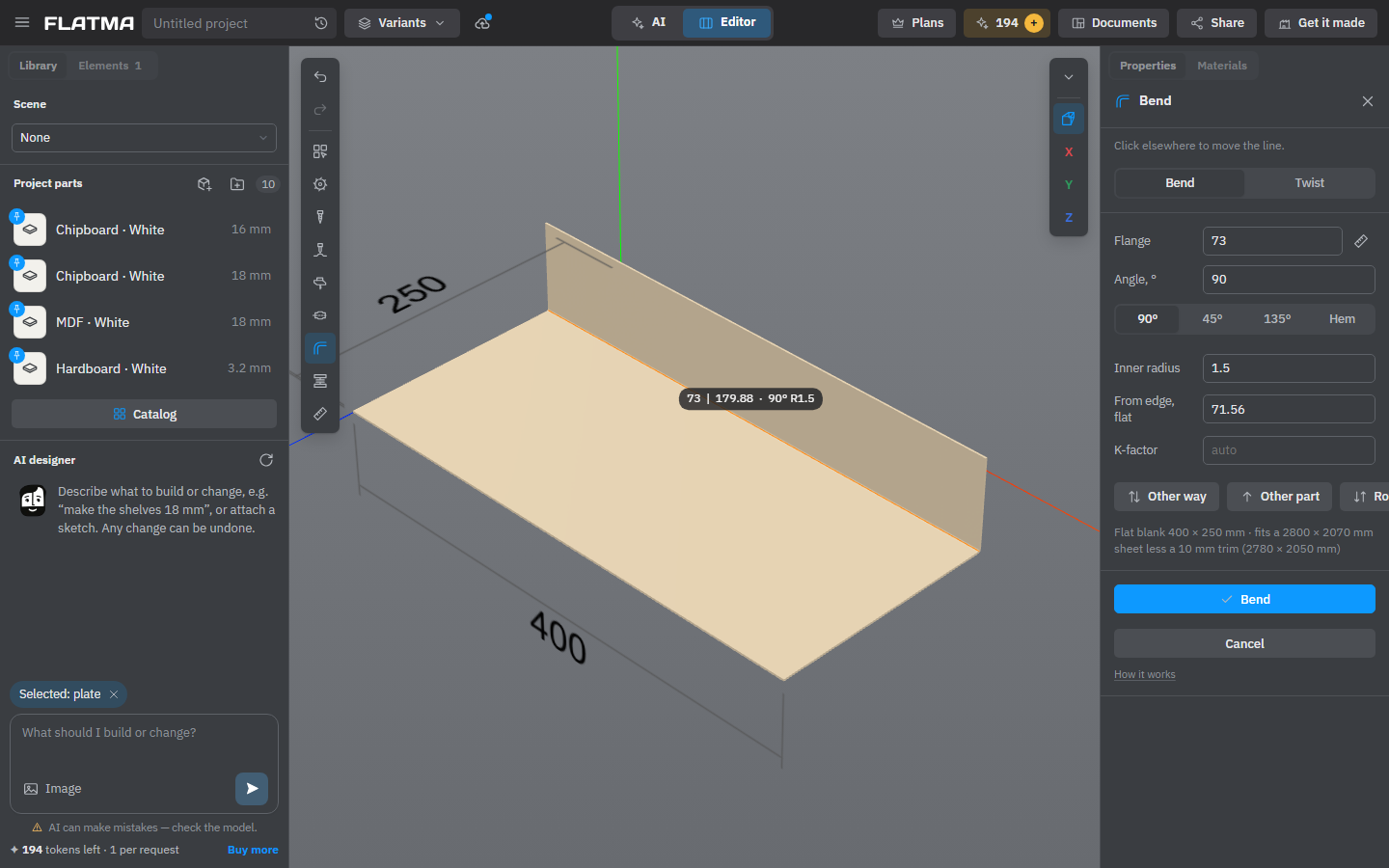
The fields
- Flange — the outside size of the bent part, as on a drawing: from the outer corner of the bend to the edge or to the next bend. The ruler button next to it measures from the other side. A flange that runs to the edge of the blank changes the blank: it gets longer or shorter at that edge, and the line stays where it is. It takes a formula, such as
=L/2. - Angle, ° — and on a sheet the presets 90°, 45°, 135° and Hem: folded flat onto itself, 180° with an inner radius of half the thickness.
- Inner radius — empty means auto, by the thickness. On a bar it is Radius, centerline, measured on the axis of the section as on a tube bender; empty is twice the section.
- From edge, flat — where the bend is on the flat blank, from its edge to the middle of the bend. It takes a formula too.
- K-factor (sheets only) — where the neutral layer lies, as a part of the thickness from the inner side. Empty works it out for each bend from its radius and thickness (DIN 6935).
Changing the angle or the radius keeps both flanges; the blank adjusts to them.
The buttons under the fields: Other way bends to the other side; Other part turns the part that stays now, instead of the one that turns; Rotate 90° turns the bend line on a sheet.
Twist
Choose Twist at the top of the panel and click the part where to twist it. Set Angle, ° and Length — how long the twisted stretch is; Twist centre is where its middle is. Press Twist. A twist and a bend can’t cross: twist a straight part, or put the bend on the part the twist turns.
The flat blank and warnings
Under the fields the panel shows the flat blank and whether it fits the part’s material. If it doesn’t fit, the bend can’t be made: make the flange shorter or choose a bigger stock. The panel also lists the corner cut-outs that will be made between flanges before bending.
Warnings don’t stop you, but are worth a look: a flange too short for the die, a radius smaller than the thickness, a hole close to the bend; on a tube, too short a straight part to clamp, or a radius at which it flattens.
Chipboard, MDF and other boards, glass and stone don’t bend: bending is for sheet metal, plastic and thin plywood.
Each bend is a step
Each bend and each twist is a row in the part’s Operations block. Click it to change that step in the bend panel, then press Apply; the bin removes only that step. To bend once more, press Bend on the toolbar again. Holes and cuts made after the bend move with the material.
The cutting list, drawings and DXF use the flat blank, as for any sheet. When the part is stretched, the flat blank and the places of its bends stretch with it.
See also: How operations work, Press, Drawings, Cutting maps.