Help · Projects and sharing
Publishing
Publishing gives your project a public page that anyone can open. After a review it can also appear in Flatma community, where people find projects and copy them into their own.
When you publish
- On the Free plan, saving a project to your account means publishing it. The Publish project window opens when you save (the cloud button or Ctrl+S), share or download a project that isn't published yet.
- On Hobby and Pro, projects are private. To publish one, click Share in the header, then Publish… in the publication block of the window.
You need an account, and the project can't be empty.
Fill in the window
Everything is filled in for you; usually one or two clicks are enough.
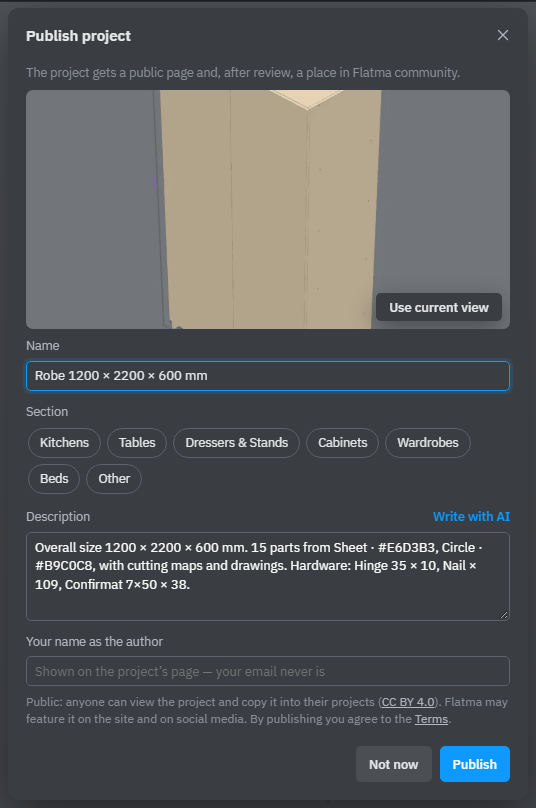
- Cover — a picture of the scene as it was when the window opened. For another angle, click Not now, turn the scene the way you like and open the window again. Use current view takes the picture again.
- Name — taken from the project name in the header.
- Section — where the project goes in the community, such as kitchens, tables or wardrobes. The studio picks one by the project's content; click another tile to change it.
- Description — a draft written from the model: overall size, materials, number of parts, hardware. Edit it or keep it; it needs at least 20 characters. Write with AI turns the facts into a few connected sentences. It doesn't use your AI tokens.
- Your name as the author — asked only once and shown on the project's page. Your email is never shown.
Read the line under the fields: a published project is public, anyone can view it and copy it into their projects under the CC BY 4.0 licence, and Flatma may feature it on the site and on social media. By publishing you agree to Flatma's Terms; the window links to them.
Click Publish (on Free, Publish and save or Publish and download). Not now closes the window without publishing.
Review and Flatma community
After publishing, the status line says Published — saved to your account, waiting for review. The project has its public page right away. Flatma then reviews it, and the Share window shows where it stands:
- Published · waiting for review — the page works; the project isn't in the community yet.
- In Flatma community — people can find it in the community and copy it. Your later edits don't change their copies.
- Published · not in Flatma community — it keeps its public page but wasn't picked for the community.
The project's page
In the Share window, Open the public page takes you to it. The page shows the cover and the 3D model, and describes the project from its own data: overall size, materials, parts, sheets, edge banding, holes and hardware, how much material it uses, how complex it is, and the steps to build it. Visitors can open the project in Flatma, change its sizes and save it as their own copy. In the studio, community projects can also be inserted into another project from the catalog.
Change the information or make it private
- Edit info in the Share window opens the same window as Project info, to change the cover, name, section or description.
- Make private (Hobby and Pro) takes the project out of public view. Copies other people already made stay with them. On the Free plan projects stay public.
See also: Sharing and remarks, Saving and versions, Project parts and My parts, Plans and tokens.