Help · Parts and assembly
Groups
A group holds several parts together: a cabinet, a drawer, a frame. You move, turn, copy and stretch it as one object, and open it when you need to change a part inside.
Select several objects
There are two ways to select more than one object:
- Shift+click each object on the scene, or Shift+click rows in the Elements list. A second Shift+click on an object takes it out again.
- Click Select several on the scene toolbar, then click parts one by one. Each click adds or removes a part, and a click on empty space doesn't clear what you picked. Press Esc, click the button again or click anywhere outside the scene to finish; what you picked stays selected.
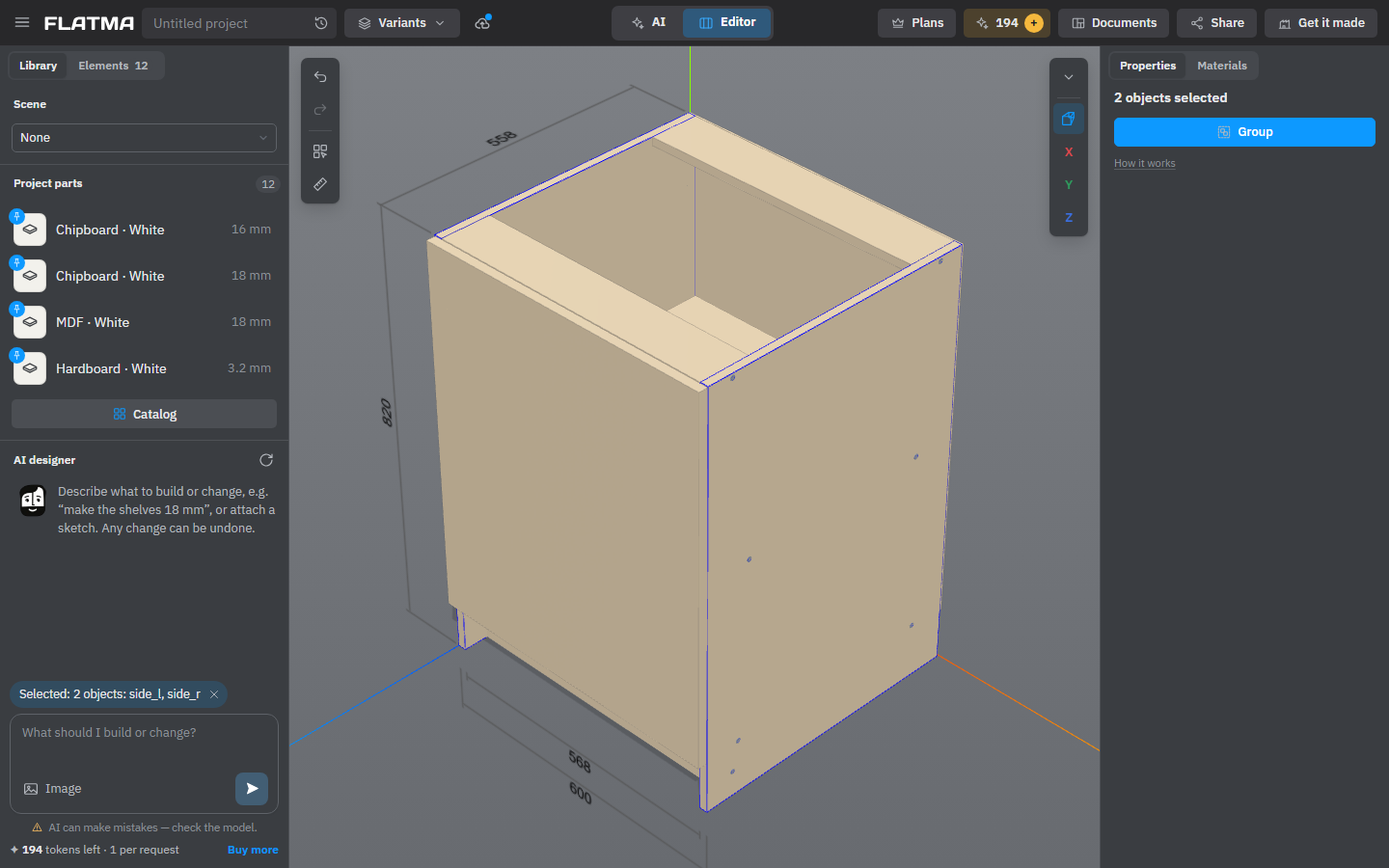
Properties then shows how many objects are selected and what you can do with them:
- Group puts them into a new group. Nothing moves: the group takes the place of the first object in the list. Only objects of the same level can be grouped, so pick them all on the top level or all inside the same open group.
- Merge selected parts (with ☰ → Advanced tools on) turns them into one part. The first one you selected keeps its name and place; the others are glued or welded into it. They must touch. See Merge and subtract.
Edit inside a group
A click on a part of a group selects the whole group. To get at the parts inside, double-click the group: it opens and the part under the pointer is selected. A bar on the scene shows which group is open.
Inside an open group, new parts you add go into that group, and Properties with nothing selected shows the Group size. To leave the group, click Exit group on the bar, press Esc, or click empty space twice: the first click clears the selection, the second leaves the group. Clicking a part outside the group also leaves it.
A copy of a project part from an older project is closed: double-click selects it whole, and a line at the bottom of the scene tells you how to change what is inside (see Project parts).
How a group stretches
When you change a group's size — by its fields, a dimension on the scene or a corner sphere — the parts inside don't all scale. Flatma stretches the group like rubber with stiff pieces in it:
- These keep their length: a sheet's thickness, a profile's section, a size with its lock closed, and offsets such as the gaps around doors.
- Everything else along that direction shares the difference in proportion. A gap between two parts without an offset is free space too, so it stretches.
- A part set at an angle that isn't a multiple of 90°, such as a brace, moves as a whole instead of stretching.
- Handles, legs, slides and other items standing on a face move with their face and don't stretch.
So when you widen a cabinet from 600 to 800 mm, the sides stay 16 mm thick, the top and shelves get 200 mm longer, and the 2 mm gaps around the doors stay 2 mm.
To keep a size of one object fixed while its group stretches, select that object and close the lock above its Width, Height or Depth in the Size block. For example, lock the height of a top drawer front, and a taller cabinet gives the extra height to the other fronts. To keep a gap fixed, make it an offset (see Offsets).
With a group selected, the dashed boxes show the reference boxes of the parts that have offsets. They show what holds the gaps when you stretch.
Ungroup
To take a group apart, select it and click Ungroup in the Group block of Properties. Its contents take its place in the tree and stay where they are on the scene; a name that clashes with a neighbour gets a number.
If the group follows project variables, Ungroup removes its formulas first, as Remove formulas does: everything stays as it stands, the formulas become plain numbers, and parts that were out of the model because of their condition are deleted. A line tells you what changed, and Ctrl+Z brings it all back. A copy of a project part becomes ordinary objects.
See also: Size, position and rotation, Offsets, The Elements list, Variables and formulas.