Help · Workshop tools
Merge and subtract
Three buttons combine parts by their shapes: merge touching parts into one, subtract one part’s shape from the parts it overlaps, or keep only the overlap. Each result is an operation you can change or remove later.
The buttons are in the Geometry block of Properties and are shown with ☰ → Advanced tools on.
Merge selected parts
- Click the part that should stay, then Shift+click the others, or use Select several on the toolbar. See Select several objects.
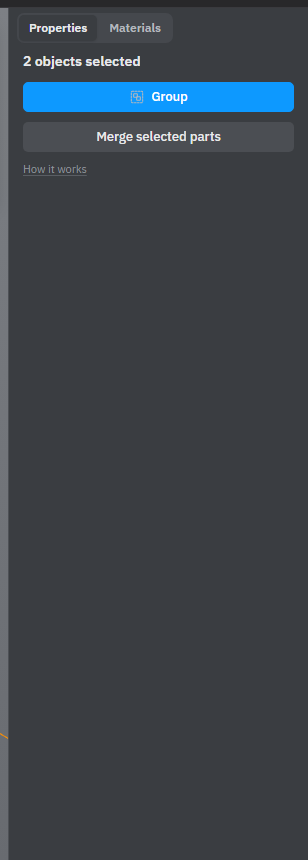
- Press Merge selected parts in Properties: with several parts selected it is under Group.
The first part you selected keeps its name and place; the others are glued or welded into it and are no longer separate objects. The parts must touch, directly or in a chain. If one doesn’t, nothing is merged and a message names it. Groups, hidden and locked parts, and parts inside a project part can’t be merged.
In the cutting list each merged part is still a piece of its own, with its own material: glued and welded parts are cut separately.
Subtract from overlapping shapes
- Place a part where material should go, for example a block pushed through a panel where a cut-out should be.
- Select it and press Subtract from overlapping shapes.
Its shape is cut out of every visible part it overlaps, except locked parts and parts inside a project part. The part you cut with stays where it is: delete or move it when you no longer need it — the cut stays. If the cut goes right through, the pieces become separate parts.
Keep only the overlap
Select a part and press Keep only the overlap. The part keeps only what it shares with the parts it overlaps, and those parts are removed: their shapes become operations of this part.
Change it later
Each result is a row in the Operations block of the part: Merge, Subtract or Intersect. Click the row to open its window — Subtraction, Merge or Overlap. The shape is highlighted on the part: red for a subtraction, blue for a merge or an overlap.
The window has no handles — the shape stays where it was — but you can repeat it and choose how it behaves when the part is stretched (see Repeat inside a tool window). Press Apply (Enter), or Cancel (Esc) to leave it as it was. If the new settings would make the part fall apart into pieces, cut it with the saw instead.
The bin next to the row removes the operation. A subtraction fills back in and an overlap gives the trimmed material back; a merged shape is taken off the part and doesn’t come back as a separate part. Right after any of these buttons, Undo (Ctrl+Z) takes the whole step back, removed parts included.
See also: Groups, How operations work, Saw, Sheets, profiles and shapes.