Help · Parts and assembly
Project parts and My parts
A part is something you build once and place as often as you like: a drawer, a door with its handle, a whole cabinet. Your project's parts are listed under Project parts in the Library tab; parts you want in every project go to My parts.
The Project parts list
Project parts shows what you have used in this project, the last used first: materials, catalog parts, free shapes and your own parts. A part you made shows a small picture and its price. Click a row to put a new one on the scene, or drag the row onto the scene to put it where you drop it. See Library and catalog.
A placed part lands as ordinary objects: a group with the part's contents, which you can open and change like anything else. If the part has variables, they become variables of your project; when a name is already taken, the new one gets a number, such as width_2. Changing the part later doesn't change what you have already placed.
Make a new part
New parts need ☰ → Advanced tools and the Pro plan; people in a company on the Business plan have it too (see Plans).
- Click New part (the icon with a plus) in the Project parts header.
- If the scene isn't empty, choose From the scene — everything on the scene becomes the part — or Empty part — the scene stays as it is.
- The studio switches to the part. A bar on the scene says Editing part and has Details, Cancel and Save part. All tools work here as in a project.
- Build the part and click Save part. The first time, a window asks for its Name, an optional Price and how it goes into the documents (In documents).
Cancel leaves without creating anything, and your scene comes back as it was. A part made from the scene takes the room, its doors and windows along; placed into a project without a room, it brings them with it.
The price is a number, or with Advanced tools a formula of the part's size, such as =L*W/1000000*45 for 45 per square metre.
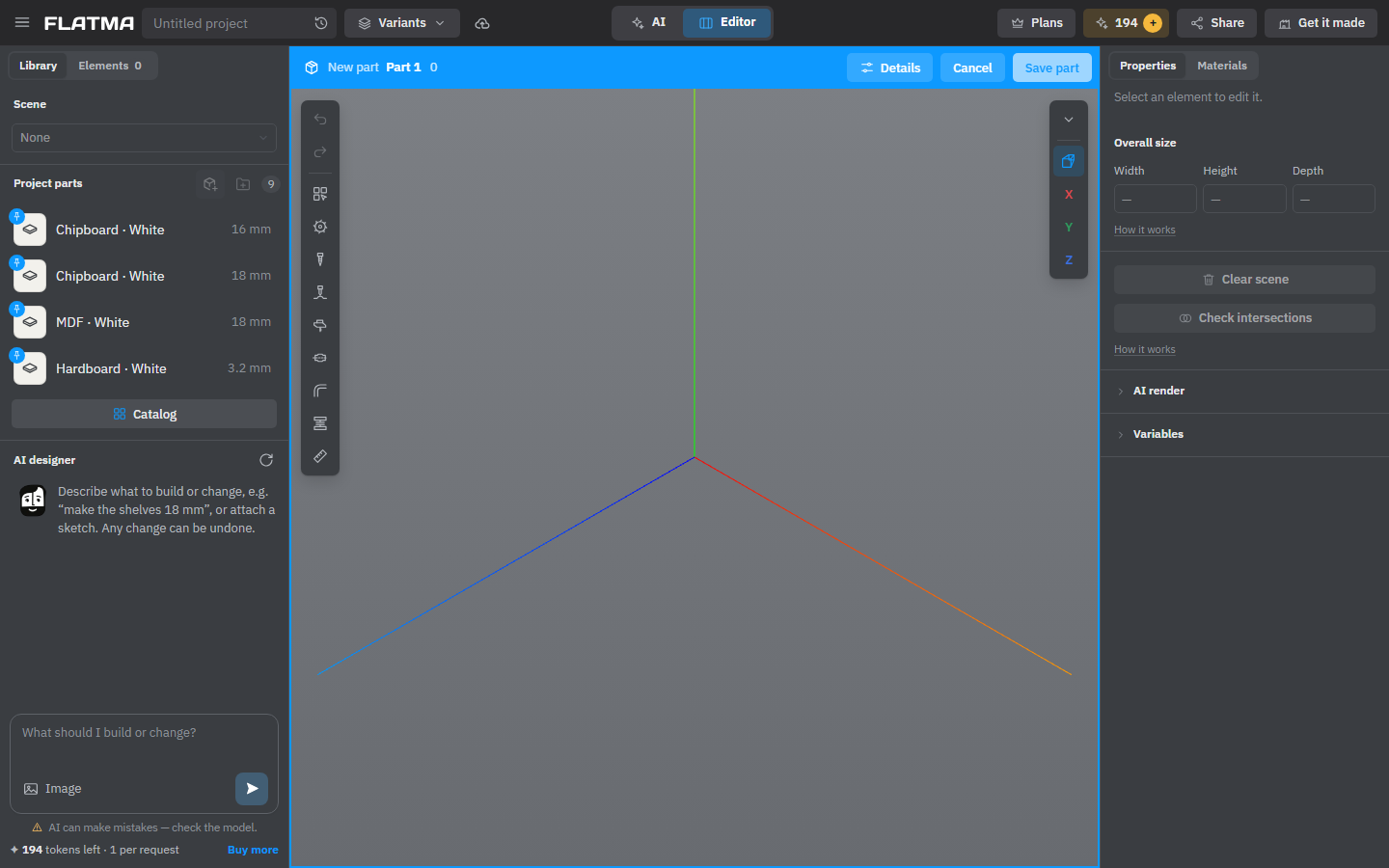
Edit a part
With Advanced tools on, each of your parts in Project parts has a pencil, Edit part. It opens the part in the full studio, the same way as a new one. While you edit, the Variables block shows the part's own variables instead of the project's.
- Details opens Part details: the name, price, section and In documents, the Reuse buttons below, and Delete part.
- Save part stores the changes in the part and returns to the project. In the project's history this is one step you can undo.
- Cancel drops the changes after asking.
A part that came from the catalog is your project's own copy: changes you make to it stay in this project.
To sort your parts, click New section (the folder icon, Advanced tools) and choose the section in Part details. Section rows in the list can be moved up, renamed and deleted.
Keep a part for all your projects
To use a part in other projects, open it with Edit part, click Details, then Save to My parts. You need to be logged in; a free account is enough. Unsaved changes are saved to the part first. The part then appears in Catalog → My parts in every project. After more changes, the button reads Update in My parts; Remove from My parts takes it out, and projects that use it keep their copy.
Add to the catalog is shown only to the catalog administrator. To share your work with other people, publish the whole project to Flatma community instead (see Publishing).
Part copies in older projects
In projects made earlier, a placed part may still be a linked copy. A copy shows as one row in Elements and changes only as a whole: you can't open it with a double-click. Its Group block in Properties has more buttons:
- Edit part (Advanced tools) opens its part; saving changes every copy.
- Make unique appears when the part has other copies. This copy gets its own part, so editing it won't change the others. It needs the Pro plan.
- Unlink part turns the copy into ordinary objects that you can change here; editing the part no longer changes it.
If the part has variables, the copy also has a Parameters block: its own values for the part's variables. Each value is a number or a formula of the project's variables, such as =width/2; an empty field uses the part's value. With Advanced tools, Remove formulas turns the copy into an ordinary group as it stands. You can give a copy its own colour or decor in the Materials tab; its board, thickness, section and edge band are set in the part.
On the Free and Hobby plans you can still place, edit and save the parts you already have; only making new parts and Make unique need Pro.
See also: Library and catalog, Variables and formulas, Connectors, Plans and tokens.