Help · Materials, edges and fasteners
Edge banding
Chipboard and MDF edges are covered with a band. Flatma bands every edge you can see on its own; you only step in where you want a different result.
Choose which edges get a band
- Select a sheet part.
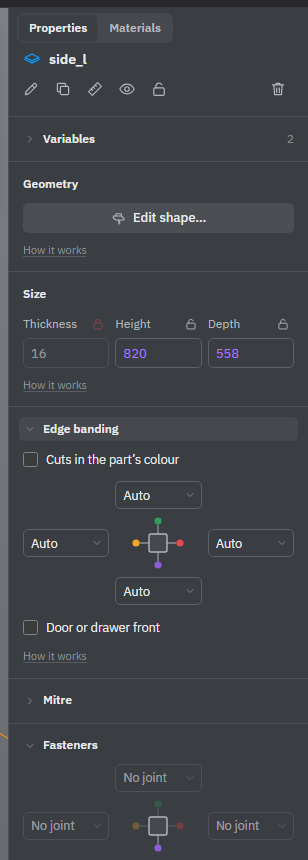
- In Properties, open the Edge banding block.
- Set each edge to Auto or None.
The four fields stand in a cross around a small picture of the part, one field per edge. A field belongs to the part's own edge and stays in its place when you rotate the part. Point at a field to see which way that edge faces now and how long it is. The coloured dots on the picture match the circles of the rotation arrows in the scene.
- Auto bands the edge when it can be seen. An edge that other parts close off along its whole length stays raw: the field then reads Auto · raw. A part up to 1 mm away still counts as touching, and an open strip narrower than 1 mm doesn't count as open.
- None means no band on this edge, whatever happens around it.
- Mitred means the end is cut at an angle in the Mitre block. A mitred end is glued, not banded, so the field can't be changed.
Doors and drawer fronts
Tick Door or drawer front for a door or a drawer front. A front never hides the edges of other parts behind it, and its own edges in Auto are always banded. The same setting is Type → Front in the window that opens with Rename (✎). A door that turns on a hinge is a front already: the box is ticked and can't be cleared.
Cuts in the part's colour
Unbanded edges, cut-outs, milling and the walls of holes look like raw board. Tick Cuts in the part’s colour to show them in the sheet's colour and decor instead, for example on a painted or solid panel. The same box is in the mill and jigsaw windows.
What is never banded
Where banding isn't possible, the block shows the reason instead of the fields:
- Thin sheets. Sheets thinner than 5 mm, such as hardboard, are not banded.
- A shaped outline. A sheet whose outline is no longer a rectangle, such as a panel cut to shape with the jigsaw, isn't banded. Holes, grooves, milling and cut-outs inside a rectangular panel don't count: it keeps its band.
- A bent sheet. It stays the colour of the sheet all over.
- A mitred end (see above).
- Materials without banding. Glass, mirror, plywood, solid wood, acrylic and sheet metal have Edge banded cleared in the material window. For them the block isn't shown at all. Tick Edge banded there if your material does take a band.
Profiles and shapes have no edge banding.
The band itself
The band's name, thickness, colour and decor are set in the Materials tab, on the band's card right under its sheet card. By default it is 1 mm thick and the colour of the sheet. See The edge band's material.
Sizes are finished sizes
The sizes you give a part are its finished sizes, band included. The band and its total length go to the parts list. The cutting maps and drawings show which edges are banded.
To cut each part smaller by the band's thickness, so the finished size comes out right after banding, open Documents in the header, click Settings and tick Subtract edge banding in the Sheets group.
Ask your workshop whether they subtract the band themselves. If both you and they do, the parts come out too small.
See also: Materials and decors, Mitred ends, Cutting maps, Jigsaw and bar section.