Help · Projects and sharing
Sharing and remarks
A view link lets anyone look at your project in 3D without changing it: a client, a workshop, a friend. For company projects, clients can also leave remarks right on the parts.
Share a view link
- Click Share in the header. You need an account; if the project isn't saved yet, the studio saves it first. On the Free plan it has to be published first (see Publishing).
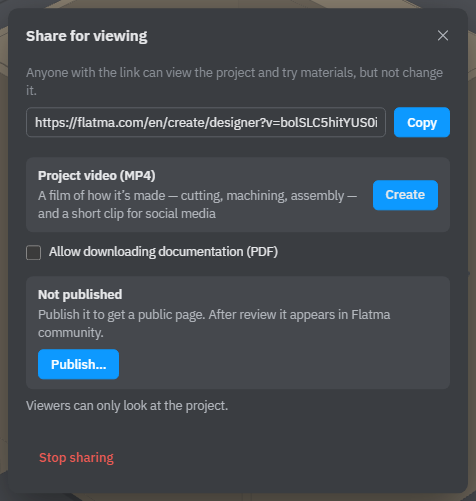
- The Share for viewing window opens with the View link. Click Copy and send the link.
A project has one view link. It is created the first time you open the window, and you get the same link each time after that.
What people see by the link
The project opens in the studio marked View only. People can turn the camera, measure with the ruler, open doors and drawers that have an animation, and try materials, but they can't change, save or copy the project. The side panels are hidden. They always see the latest saved version: when you change the project, the link shows the change.
The window has these options:
- Allow downloading documentation (PDF) — viewers get the Documents button: they can look at the cutting maps and drawings and download the Documentation (PDF) and Part labels (PDF). Without the tick there is no Documents button for them.
- Allow remarks on parts — only for projects of a company. Viewers can point at a part and write what to change (below).
- Project video (MP4) — Create opens the film of how the project is made, in a new tab (see Downloads).
A line at the bottom of the window sums up what viewers can do. Below the options, the window also shows whether the project is published and in Flatma community, with buttons to publish it, edit its public information or make it private again (see Publishing).
The view link also has the Assembly view for the workshop (see Part labels and assembly).
Stop sharing
Click Stop sharing at the bottom of the window and confirm. The link stops working for everyone who has it, and remarks by it are turned off. The next time you click Share, you get a new link.
Leave a remark (for the viewer)
When a company allows remarks, its client sees Add a remark in the header of the view.
- Click Add a remark.
- Tap the model where something should change. The point sticks to that part.
- Write what should be changed, and how, and your name.
- Click Send.
The button then reads Remarks with the number of open ones. Open remarks show as numbered points on the model; click a remark's card to fly the camera back to the view it was written in. You can edit or delete your own remark until the company answers. When the company marks it done but it still isn't right, click Not yet and say why. No login is needed.
Answer remarks (for the company)
When a project has remarks, the studio shows Remarks with the number of open ones next to the project name. Click it to open the panel over the right column. Each card says where it came from — Share link or an offer — and what part it is about. Click a card to see the remark on the model, from the angle the client saw.
- Done — you fixed it; a note is optional.
- Can’t do — say why; the reason is required.
- Reply — answer without changing the status; Reopen — open a closed remark again.
- Delete — remove a remark for good, for example spam. The client won't see it either.
The project behind the link is live: fix it in the studio and the client sees the change the next time they open the link. There are no e-mails about new remarks, so check the panel. If the project is in an order in your CRM, remarks also go to the order's history. Remarks on a commercial offer work the same way, on the 3D model of the offer.
See also: Publishing, Downloads, Part labels and assembly, Saving and versions.