Help · Checking and documents
Part labels and assembly
Part labels mark every cut part with its number and a QR code. In the Assembly view anyone with the project's view link can find a part by its number or its QR code and see where it goes.
Print part labels
- Click Documents in the header, then Download.
- Pick Part labels (PDF).
- Choose the Label size: a size of label-printer labels (for example 58 × 40 mm for thermal printers, or the sizes of Brother QL and DYMO LabelWriter labels), or an A4 sheet with 3 or 4 columns. A preview of the first label and the number of labels appear below.
- Click Download and print the PDF at 100%, without scaling. On A4, cut the labels apart along the dashed lines.
In your studio, labels need an account and a saved project: the QR code is the project's view link. If the project has no view link yet, the studio creates one, the same as the Share window does. On the Free plan the project has to be published first.
The numbers are the part numbers of the parts list and the cutting maps. If you change the project after printing, the numbers may change: print the labels again.
What is on a label
There is one label for every single part. A part that comes three times gets three labels, marked 1/3, 2/3 and 3/3. Labels are black and white, so any label printer can print them. Each one has:
- the part number in large type and the name of this particular part;
- in a project with several products, which product it belongs to, such as Product 2 · Base cabinet, so you know where to take it;
- the size, with dashes for edge banding as in the documentation, the material, the cut size and the edge band;
- a small picture of the part, as on its drawing: a panel seen on its face with cut-outs and holes, a profile along its length, a shape in 3D;
- a mini map of its sheet or bar, with all parts outlined and this one filled in black;
- the sheet number (such as Sheet 2/5), the drawing number and the project name;
- a QR code that opens this exact part in 3D.
Labels come in cutting order: material by material, sheet by sheet. Parts without a map, such as shapes, come last.
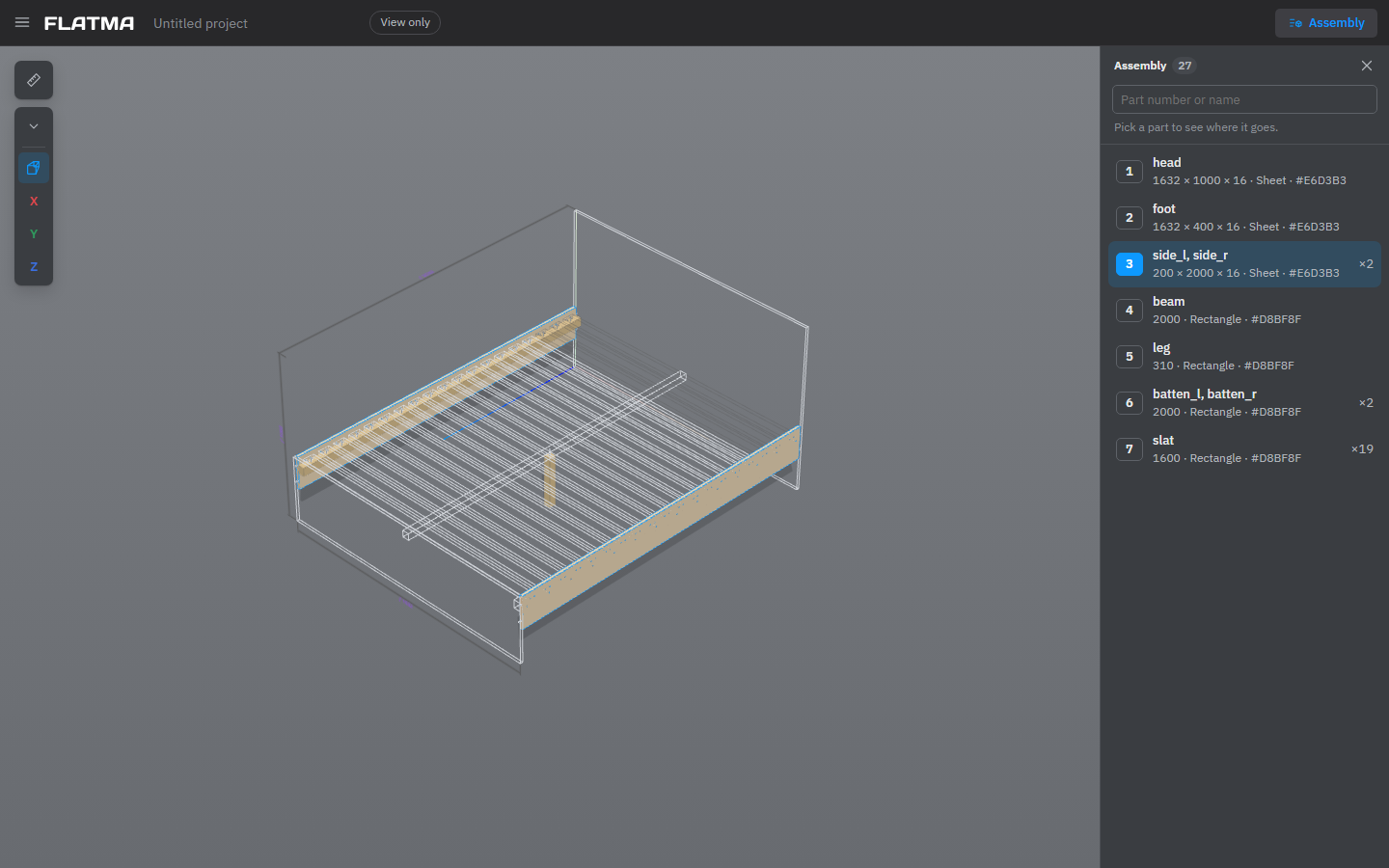
Find where a part goes
The Assembly view works in a project opened by its view link, not in the editable studio. To open it:
- scan a part's QR code with any phone camera — the view opens with that part already shown; or
- open the view link (Share → Copy, see Sharing and remarks) and click Assembly in the header.
The Assembly panel on the right lists all parts with their numbers, as in the documentation; identical parts are one row with a quantity. In a project with several products, the parts are grouped by product, and the rest are under Other parts. Bought items are listed below without numbers.
- Type a part number, a label number such as 7.2, or a name in Part number or name.
- Click the part. The camera flies to it, its outline is highlighted, and the parts in front of it are shown only as edges, so you can see where it fits.
- Click the same row again, or press Esc, to clear it. Click a product heading to show the whole product.
The Assembly view only shows. Nothing you do there changes the project.
Scan a label in the Assembly view
On a phone or tablet, the Assembly panel has a QR button next to the search field.
- Tap the QR button and allow the camera if the browser asks.
- Point the camera at the QR code on a part. When the code belongs to this project, the panel shows that part.
A QR code of another Flatma project opens that project. A code that isn't a link to a part is ignored and the camera keeps looking. The button doesn't appear on a computer with a mouse, or where the browser can't use the camera.
A label printed from a company's order points at that order's version of the project. If the project has changed since, the studio offers to open that version to print its labels, so the labels match what the workshop makes.
See also: Downloads, Cutting maps, Sharing and remarks.