Help · AI designer
AI render
AI render turns the current view of the scene into a photorealistic picture of your project. Use it to show a client or yourself how the piece will look in a real room before anything is made.
Where to find it
The AI render block is in the Editor, on the right panel, Properties tab, when nothing is selected: click empty space on the scene, and it is under Check intersections. Click its title to open it; the browser remembers whether it is open.
There is no AI render on a company’s website or in a project opened by a view-only link.
Make a render
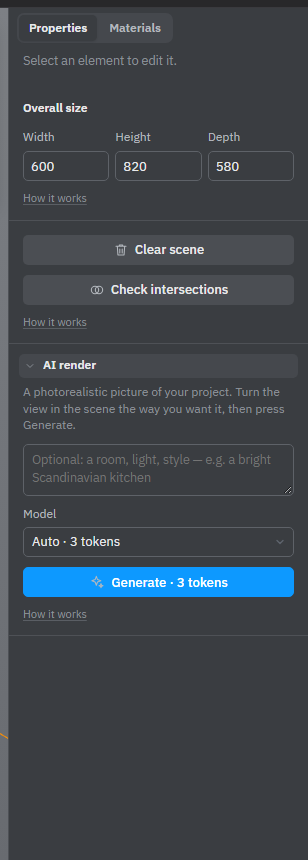
- Turn and zoom the view so the scene looks the way you want it in the picture. The AI draws exactly what you see.
- If you like, describe the setting in the field: a room, light, a style, for example “a bright Scandinavian kitchen”. You can leave it empty.
- Pick a model in the Model list. Each line shows how many AI tokens it costs. Auto costs the least; the other models cost twice as much and draw in their own ways.
- Click Generate. The button shows the price of the chosen model.
A window opens with your view, faded, and Rendering… usually 10–60 seconds. When the picture is ready, it replaces the view and is saved to your downloads at once, named after the project. Download saves it again.
You can close the window while it renders. The picture still arrives, downloads, and the window opens again by itself.
What the AI keeps and what it adds
The AI keeps the shapes, sizes and colours of your parts, and makes the light, shadows and surroundings real. Size numbers, axes and connectors are left out of the picture.
The AI is told not to change your furniture, but it still draws a picture, not a drawing. Small details can come out differently, especially with a busy background. Use the render to judge the look, never the sizes.
- A floor or room around the model (Library → Scene) gives the AI a better starting point than an empty background.
- Hidden parts are not in the view, so they are not in the picture either.
- If you don’t like the result, try again with another wish or another model: each try gives a different picture.
Tokens
A render needs an account and AI tokens; without an account the button opens a window to create a free one. The tokens are taken when you click Generate. If the render fails — the service is busy, takes too long or sends no picture — the tokens come back, and the window says so. If you don’t have enough tokens, the window offers Buy tokens.
There is also a limit on how many renders one person can make in an hour. If you reach it, wait a little and try again.
Flatma doesn’t keep your renders. Keep the downloaded file: the picture is not stored with the project.
See also: Plans and tokens, Camera and views, Floor and room, Designing with the AI.